Introduction
PoE2 Oracle is a free price checker and XP tracker for Path of Exile 2 on Windows. Point at an item in the game, press Ctrl+E, and a panel next to your inventory shows what similar items sell for on the official trade site, with the item’s modifiers as filters you can adjust. And an XP overlay right on the game’s HUD shows how fast you level, how long until the next level and how long the current map has run.
Download for Windows · Project site
What it does
- Price check. Listings from the Path of Exile trade site, cheapest first. Currency and other Currency Exchange items are priced from GGG’s own record of the exchange’s trades, with poe2scout’s chart of the week; unique items also show poe2scout’s price. Listings of sellers who trade in person carry a ✉: a click copies the whisper to that seller. Instant Buyout listings, which a check searches by default, need none.
- Craft of Exile in one click. The panel’s Craft of Exile ↗ link opens the item in Craft of Exile’s crafting simulator with its base, item level, rarity, implicits and modifiers set, from either client: it hands the item over by the game’s own ids, while Craft of Exile’s own import reads only the English client’s text.
- Waystone marks. Mark Waystone modifiers as danger, caution or wanted, and every Waystone you check shows them.
- Quick actions. Hotkeys that send chat commands such as
/hideoutor paste a stash search. - XP overlay. Your levelling rate, in percent of a level per hour, and the time to the next level, above the game’s flask panel, and a map timer above its skill panel.
- Updates. New versions and new game data from oracle.pushka.biz install by themselves, only once their signature and SHA-256 checksums check out, and never while one of the app’s windows is open; after the restart a plate over the game says so.
- Reporting a problem. Write to the developer from the app’s report window, with the item’s text or a diagnostics report attached if you like; no account needed. After a crash, the window opens by itself on the next start.
Before you start
- The interface is in English or Russian. By default it follows the game client’s language, or Windows’ before the game has ever run; Interface language in the settings changes it. This guide names the labels as the English interface shows them, in bold. Item names and mod lines keep the language the game gives them; league names are the ones the trade site uses in the interface language.
- You need Windows 10 or 11 (64-bit), the English or Russian game client, and the game in Windowed or Windowed Fullscreen mode. See Install and first run.
- There is no main window: PoE2 Oracle runs in the background, shown by its icon by the clock, a button on the taskbar, or both, as picked in the settings. A click on either opens the settings.
- PoE2 Oracle needs no account for price checks and collects nothing about you or your play; the service behind updates only counts installations, starts and updates, as anonymous numbers with no address or id kept (see What the service counts). Signing in to pathofexile.com is optional: it opens private leagues and sum filter rows. See Privacy.
About
PoE2 Oracle is a fan-made tool. This product isn't affiliated with or endorsed by Grinding Gear Games in any way. Path of Exile is a trademark of Grinding Gear Games.
PoE2 Oracle is licensed under the MIT or Apache 2.0 license, at your choice; both license texts are installed next to the program. Its item and modifier tables build on Exiled Exchange 2 (MIT).
Install and first run
Requirements
- Windows 10 or Windows 11, 64-bit. Nothing else to install first: the app needs no .NET and no Visual C++ Redistributable. Only the optional sign-in to pathofexile.com needs the Microsoft Edge WebView2 Runtime; if Windows lacks it, a click on Sign in in the settings says so and offers Download from Microsoft.
- Path of Exile 2 with the English or Russian client.
- The game in Windowed or Windowed Fullscreen display mode. Over exclusive Fullscreen, Windows cannot show other programs’ windows, so the panel would stay invisible.
- An internet connection: prices come from the Path of Exile trade site, GGG’s Currency Exchange
data (
web.poecdn.com) and poe2scout; updates and the reports you send go through oracle.pushka.biz.
Download
On oracle.pushka.biz, click Download for Windows: the button
always downloads the latest installer, PoE2-Oracle-Setup-<version>.exe.
The latest release’s SHA256SUMS file is on the site too, at
https://oracle.pushka.biz/download/v<version>/SHA256SUMS: while 0.1.0 is the latest,
https://oracle.pushka.biz/download/v0.1.0/SHA256SUMS. The site serves only the latest release’s
files: once a newer version is out, an older version’s address answers 404. To check the download,
run this in PowerShell in the folder with the installer and compare the result with the
installer’s line in SHA256SUMS (letter case doesn’t matter):
Get-FileHash .\PoE2-Oracle-Setup-*.exe -Algorithm SHA256
Windows SmartScreen
The installer is not code-signed yet, so Windows may show “Windows protected your PC” when you start it. Click More info, then Run anyway. Your browser may also warn that the file is not commonly downloaded; keep it.
Install
- The installer is in English or Russian, following your Windows display language.
- Its first page says what PoE2 Oracle sends over the internet and links the privacy policy. Its Update automatically box is the settings’ own (see Updates): ticked, the app keeps itself up to date through oracle.pushka.biz, which counts installations, starts and updates; unticked, it never connects there, so it neither updates nor is counted. A reinstall shows the box as your settings have it. Next goes on to the folder.
- It installs for your Windows user only and needs no administrator rights. The default folder is
%LOCALAPPDATA%\Programs\PoE2 Oracle; you can pick another one. - It adds a PoE2 Oracle shortcut to the Start menu. There is no desktop shortcut.
- The last page offers to run PoE2 Oracle and to start it with Windows. The start-with-Windows box is ticked when PoE2 Oracle already starts with Windows from this folder and Task Manager hasn’t turned that off; finishing with it ticked turns autostart on (undoing a Task Manager Disable), leaving it unticked turns it off. With Run PoE2 Oracle ticked, the app starts with a welcome; see First start.
- If PoE2 Oracle is running, the installer says “PoE2 Oracle is running and will be closed to continue.”: OK closes it, Cancel keeps you on the folder page.
Set the game’s display mode
In the game’s graphics options, set the display mode to Windowed Fullscreen (or Windowed). If the game is in exclusive Fullscreen, the settings window of PoE2 Oracle warns about it at the top.
First start
Finish the installer with Run PoE2 Oracle ticked, and PoE2 Oracle starts with its settings window open at General and a welcome over it. The welcome says that PoE2 Oracle is installed and running; where you will find it from now on (its icon by the clock, its button on the taskbar, or both) and that a click there opens the settings; for the icon by the clock, that Windows first hides a new app’s icon under the ^ arrow and that dragging it from there onto the taskbar keeps it in sight; how to check a price with your hotkey, and that the XP overlay shows above the flask panel (or that it is off); and whether PoE2 Oracle starts with Windows. Got it closes the welcome, and so do Enter and Esc. If a copy of PoE2 Oracle was already running, that copy shows the welcome.
PoE2 Oracle has no main window. It runs in the background, and you find it by its icon in the notification area next to the clock, by its button on the taskbar, or by both: Where to show the app in the settings picks which, the icon by the clock being the default. If you do not see the icon, it may be under the ^ arrow (show hidden icons); you can drag it out onto the taskbar. Hover the icon to see the price-check hotkey: “PoE2 Oracle — price check: Ctrl+E”.
On the very first start the app downloads the trade site’s data, which takes a few seconds, and then, after the welcome if it is showing, walks you through a short tour. It dims the screen around one thing at a time and explains it on a card: the league in the settings window; then, in the game, pointing at an item and pressing Ctrl+E; then the filters, Search, the listings and the league on the price panel that opens; and last the XP overlay. Next and Back move between the steps, and a step that waits for you, like the first price check, moves on by itself once you do it. Skip tour ends it. The tour starts with every launch until you finish or skip it; after that, Help → Tutorial → Replay in the settings runs it again.
PoE2 Oracle speaks English or Russian. At first it follows the game client’s language, or Windows’ before the game has ever run; Interface language in the settings changes it. See Interface language.
Look through the settings: the league, the client and interface languages and the hotkey are the main ones. Changes apply and are saved at once. Warnings marked ⚠ at the top mean something in your setup keeps price checks from working; see Troubleshooting.
Then, in the game, point at an item and press Ctrl+E. See Price check.
The tray icon and the taskbar button
A click on the tray icon opens the settings, or brings them to the front. A right click opens its menu:
- Settings opens the settings;
- Quit closes PoE2 Oracle.
With On the taskbar or Both picked in Where to show the app, a PoE2 Oracle button stays on the taskbar for as long as the app runs, with the app’s icon:
- a click on it opens the settings, or brings them to the front. The settings and report windows have no taskbar button of their own then: this one stands for them;
- Close window in its right-click menu closes PoE2 Oracle, as Quit does;
- hovering it shows the app’s icon instead of a preview;
- Alt+Tab lists it as PoE2 Oracle while neither the settings nor the report window is open, and picking it there opens the settings.
Quit the app in the settings, section Help, closes PoE2 Oracle too, whichever of the two shows.
One copy at a time
Only one copy of PoE2 Oracle runs at a time. Starting it again, for example from the Start menu, opens the settings of the copy that is already running. A copy started with Windows while another one runs quietly exits.
Start with Windows
Turn on Start with Windows in the settings, section General, or tick the box on the installer’s last page. Started with Windows, PoE2 Oracle waits in the background until you play, with two exceptions: until you finish or skip it, the tour opens at every start, and the first start after a crash opens the report window.
Price check
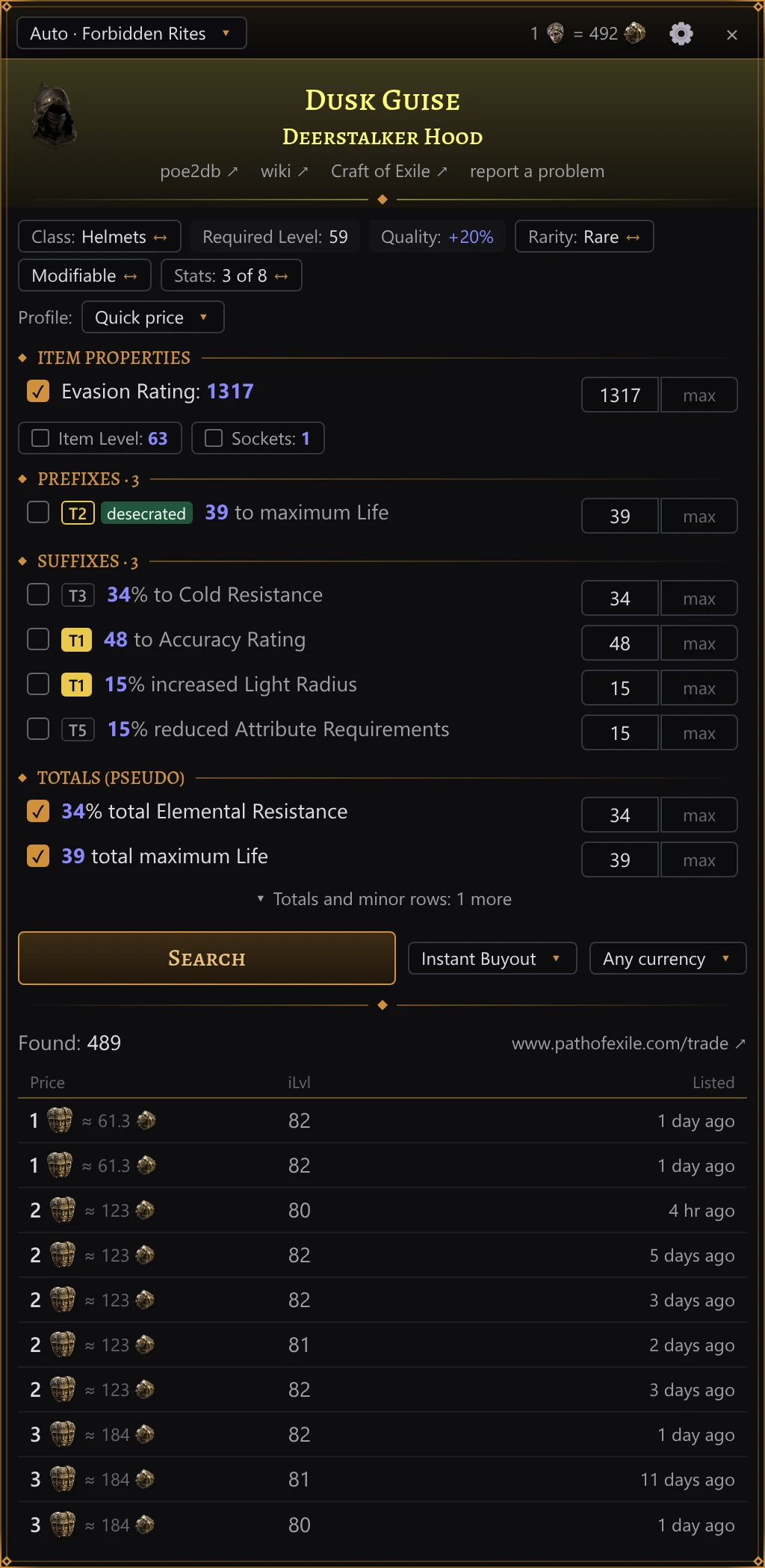
This page names the panel’s parts as the English interface shows them; the interface language switches them to Russian. The item’s own text — its name, modifiers and properties — keeps the language the game copied it in.
Checking an item
- In the game, point at an item: in your inventory, in the stash or in a vendor’s window.
- Press Ctrl+E. This is the default; you can pick another key in the settings.
PoE2 Oracle presses the game’s own item-copy shortcut, Ctrl+Alt+C, reads the item text from the clipboard and puts back whatever you had copied before. A panel then opens over the full height of the game window: next to the inventory if the cursor was on the right half of the game, next to the stash if it was on the left half. By itself it never covers the inventory or the stash, but you can drag it over them (see below).
Note
Alt in that shortcut is the game’s key for advanced item descriptions. If you bound that action to another modifier key in the game’s options, PoE2 Oracle reads your binding from the game’s settings file and presses Ctrl + that key + C instead.
- The hotkey works only while the game or the panel is the window in front and the settings window is closed. In every other program Ctrl+E keeps its usual meaning.
- Press the hotkey over another item to check that one; the panel starts over for each item, but keeps the price currency you chose (see Search options).
- With no item under the cursor, nothing happens.
- Close the panel with Esc or the × in its top-right corner. It does not close when the mouse leaves the item, so you can move into it and work with it. While the panel is open, Esc closes the panel and does not reach the game. To close it with the mouse too, turn on Close on a click outside in the settings: a click in the game outside the panel then closes it, and the click itself still reaches the game. It is off by default.
- Clicks on chips, checkboxes and buttons leave the keyboard with the game. Only the min/max boxes take the keyboard when you click into them; when the panel closes, the game gets it back.
- While the panel is open, the mouse over it (clicks and the wheel) works on the panel, not on the game.
The panel’s top bar starts with the league being searched: Auto · league while the trade site picks it, or the league you chose. Click it for the same choice of leagues the settings offer: your pick is saved there and the search runs again in the new league. Leagues are named as the trade site in the interface language names them, the English site’s names in English. Once the exchange prices have loaded, the bar also shows how many Exalted Orbs a Divine Orb is worth, drawn with the two currency icons. Drag the bar’s empty part to move the panel sideways: the next checks on that side open it there too, as far from the inventory or the stash as you left it, whatever the interface scale. Dragged back near the inventory or the stash, the panel sticks to it. A double-click on the bar puts the panel back in its usual place. The gear ⚙ opens the settings; × closes the panel.
Tip
Numbers follow the interface language:
1.72and15%in English,1,72and15 %in Russian. Large numbers are shortened withkandM:4.1kis 4,100. Every price is a number followed by the currency’s icon, such as the Divine Orb’s or the Exalted Orb’s; a currency without an icon is named instead.
The nameplate
At the top of the panel:
- the item’s picture, when the item is in the app’s item table;
- the name in the game’s rarity colour, and the base type under it for rare and unique items;
- links poe2db ↗ (the item’s page on poe2db.tw, in Russian for items from a Russian client) and wiki ↗ (the English Path of Exile 2 wiki, poe2wiki.net), for items in the app’s item table. They open in your browser;
- the link Craft of Exile ↗, for an item the site can craft (gear, jewels, flasks, charms and waystones, not uniques or unidentified items): it opens the item in Craft of Exile’s crafting simulator with its base, item level, rarity, implicits and modifiers, the site in the interface language. It works from either client: Craft of Exile’s own import reads only the English client’s text, so the link hands the item over by the game’s own ids instead, the base’s and each modifier’s with its rolls, which are the same in any language. A modifier whose id isn’t certain is left out rather than guessed;
- the link report a problem, for when the item was read or priced wrong. It opens PoE2 Oracle’s own report window, not a browser, with Item selected and the item’s text attached (and, by default, diagnostics). You describe what is wrong and click Send; no GitHub account is needed. See Reporting a problem.
The chip row
Under the nameplate, a row of chips describes the item and how it is searched.
Chips that only show information:
| Chip | Meaning |
|---|---|
| item class, without a label | Item class, as the game names it (in Russian for items from a Russian client), on an item whose search can’t switch to its base: a unique, a gem, a Currency Exchange item and the like |
| Item Level: … | Item level |
| Required Level: … | Required character level |
| Sockets: … | Sockets |
| Quality: +…% | Quality |
| Corrupted | The item is corrupted |
| Stack Size: … | Stack size |
Chips with a gold ↔ at the end switch something when clicked; their outline turns gold under the pointer. Hover any of them for an explanation.
| Chip | What it switches |
|---|---|
| Class: … ↔ Base: … | Search among every item of the class (a rare is compared with its whole class by default) or only among items of this base type. The base can matter on its own: a base implicit, a sought-after base. |
| Rarity: … | Magic, Rare or Normal searches only items of the same rarity; Any Non-Unique searches every rarity except unique. The chip starts on the item’s own rarity, so a magic item is compared with magic items and a rare with rare items; a click switches it to Any Non-Unique, and another click back. |
| Modifiable ↔ Corrupted or not | For an item that is not corrupted, corrupted listings are left out by default: they cannot be changed and may have modifiers this item lacks. Click to include them. |
| Corrupted only ↔ Corrupted or not | For a corrupted item, only corrupted listings count by default, since corruption changed them the same way. Click to include uncorrupted ones. |
| Unidentified only ↔ Identified too | For an unidentified item, only unidentified listings count by default: identified ones sell for their modifiers. Click to include identified ones. |
| Stats: N of M | How many of the listed searchable rows are selected. Click to select all of them, or none. |
A unique item has no rarity chip: its name already pins the search down. Mirrored and sanctified listings are left out of the search for ordinary gear unless your item is one; there is no chip for that.
Filters
Below the chips, the item’s properties and modifiers are listed in sections:
| Section | Contents |
|---|---|
| Item properties | Item level, sockets, quality, defences, weapon DPS, attack speed, critical hit chance, waystone tier and the like |
| Implicit modifiers | Implicit modifiers |
| Prefixes · N | Prefix modifiers |
| Suffixes · N | Suffix modifiers |
| Other modifiers, or Modifiers on an item without prefixes and suffixes | Enchantments, rune and crafted modifiers and other lines that are not prefixes or suffixes |
| Totals (pseudo) | Sums across modifiers: total life, total elemental resistance, all attributes and so on; some are labelled sum |
The rows read the way the item does: an item from a Russian client lists its properties in the game’s Russian words (DPS as «УВС») and its modifiers as the client copied them, and the totals are named by the Russian trade site.
Each row has a checkbox (whether the row takes part in the search), the modifier text with your roll highlighted in blue, a tier badge and min/max boxes; a ticked modifier whose tier the app knows also has a roll slider under it (see Min and max). The tier badge is gold-filled for T1, gold-outlined for T2 and grey for lower tiers. Small labels before the modifier text, after the tier badge if there is one, say where a modifier comes from: augment (from a rune or other augment), crafted, fractured, enchant (enchantment), desecrated. The label sum in the same place, explained when you hover it, marks a total whose value adds up the stat from all the item’s modifiers: the trade site searches listings by the same sum. Rows labelled sum appear only while PoE2 Oracle is signed in to pathofexile.com (section Account of the settings): the trade site adds stats up only for a signed-in account. Signed out, the modifiers a sum would add up are rows of their own. A line the trade site cannot search says not part of the search.
An item property left out of the search, such as item level, sockets or quality, is not a row but a small chip with an empty checkbox under its section’s rows. Click it to add it to the search: its row appears, with bounds from the item’s value. Untick the row and it folds back into a chip.
On a magic or rare item that can still take modifiers, rows Empty prefix / Empty prefixes: N and Empty suffix / Empty suffixes: N (open prefix/suffix slots) can be searched too.
Some rows are folded away: unselected totals, and minor properties such as a weapon’s physical or elemental DPS when it is only a small part of the total. ▾ Totals and minor rows: N more unfolds them; ▴ Hide totals and minor rows (N) folds them again.
Search profiles
A search profile decides which rows are selected and where their bounds start. The row above the filters starts with Profile: and a select naming the current profile. Click it for a menu of the four profiles, each with a note on what it searches:
| Profile | Note in the menu |
|---|---|
| Quick price | up to 4 most valuable stats, your rolls as minimums |
| Exact match | all stats, your rolls as minimums |
| Broad −10% | checked stats, minimums 10% lower |
| Crafting base | implicit and fractured stats on the same base |
Picking a profile, the current one included, sets the rows up and searches once. A click outside the menu or Esc closes it without searching. The select is there only for items searched by their filter rows, not for Currency Exchange items or items searched by their exact name.
An item opens with Exact match if it is a unique, a relic, a flask or a charm, or if it can no longer be modified (corrupted, mirrored, sanctified or unmodifiable) and is not a waystone. Every other item opens with Quick price, and so does a crafting base that can still be modified: an item of normal rarity, a fractured item, or one with quality above 20% or more rune sockets than its base has.
What each profile selects:
- Quick price selects rows the way PoE Overlay II does. Every modifier gets a score from its tier (against the best tier the item’s level allows), its tags weighted by the item class, how high it rolled within its range, and a few fixed bonuses. Up to 4 rows scoring 3 or more are selected, highest scores first, and no more than 2 of them may be sum rows. A local modifier (defences, weapon damage) counts toward the property it changes, and that property’s row is selected instead. Magic items follow the same rule.
- Exact match selects every row outside Item properties that is not folded away, plus the item properties Quick price would pick.
- Broad −10% keeps the rows that are ticked now and sets each min 10% below the item’s roll.
- Crafting base selects the implicit, fractured and granted-skill rows and item level, and searches among items of the same base type: the class chip switches to Base: …. The other profiles set that chip back to its default for the item.
In every profile a few stats are always selected: base implicits that define the base, such as extra projectiles or bolts, chaining, piercing, maximum elemental resistances, spirit or movement speed; unrevealed modifiers; a timeless jewel’s legend; and granted skills of level 19 or higher (of any level on an amulet).
In Quick price and Exact match, item level, sockets, quality, gem and waystone rows keep their usual checkbox. A waystone starts on Quick price, which leaves all its modifiers unselected: its tier and properties set the price, its modifiers only make the map harder. Select a modifier yourself to search for it, or pick Exact match to search them all.
Min and max
- Only min is filled in: your roll in Quick price, Exact match and Crafting base, 10% below it in Broad −10%. max stays empty, since a higher roll is never a reason to leave a listing out.
- For the few modifiers where a lower number is better, max is filled in instead.
- A waystone’s tier and numbers that name something instead of measuring it, such as a timeless jewel’s legend, are searched exactly: min and max are both that number.
- Broad −10% doesn’t lower item level, sockets, quality, a gem’s level and sockets, a granted skill’s level, a waystone’s properties or a modifier that can roll only one value: they keep the same bound as in the other profiles.
- Type digits, a point or a comma (both give a decimal point) and a minus sign. The first key after you click into a box replaces its value.
- Enter in a box runs the search again with the new bounds.
Under a ticked modifier row whose tier the app’s tier table knows, a slider runs from the lowest to the highest roll of that modifier across all its tiers on this kind of item. A bright gold tick marks your roll, and a gold circle, the handle, marks the search’s min (its max on rows where a lower number is better); the part of the track the search admits is lit gold. Click or drag on the slider to move the handle, and the min (or max) box follows; typing in the box moves the handle. Hover the slider for a short explanation that names the lowest and highest rolls.
Hover a tier badge to see where the tier stands: Tier 3 of 9 (the tier among all tiers of that modifier on this kind of item), the lowest roll of this tier, the lowest and highest rolls across all tiers (All tiers: …), the item level the tier requires, and the best tier the item’s level can roll.
The button Tier minimum, on the right of the profile’s row, shows while a ticked modifier row has a known tier. It sets the min of every such ticked row to the bottom of its current tier, so the search finds the same tier and better. Rows where a lower number is better are left alone.
Ticking or unticking rows, moving a slider, Tier minimum and switching the class, rarity, corruption or identification chips take effect with the next search: press Enter in a box or click Search.
Search options
Under the filters, the Search button runs the search again; while a search runs, it reads Searching…. Beside it (under it, on a narrow panel) are two more choices, each showing only its current value. Each click on them moves to the next value and searches again at once.
- Sellers (the tooltip starts with “Sellers:”): Buyout or In Person → Instant Buyout (the default: the game’s own auction sells the item without the seller online) → In Person (sellers online, to trade with them in the game) → Any (offline sellers too). The starting value comes from the settings, and every new item starts from it again.
- Price currency (the tooltip starts with “Price:”): Any currency → the Exalted Orb or the Divine Orb (shown by their icons) → Only the Exalted Orb → only the Divine Orb → only the Chaos Orb. This choice stays from item to item until you change it; each start of PoE2 Oracle resets it to Any currency.
Results
- Found: N is the number of listings on the trade site. The link next to it, www.pathofexile.com/trade ↗ (ru.pathofexile.com/trade ↗ for an item from a Russian client), opens the same search in your browser.
- The table shows the 10 cheapest listings, cheapest first. Several listings of one seller at the same price share a row.
- Columns: Price, iLvl (item level), Seller (can be hidden in the settings) and Listed: “just now”, “5 min ago”, “3 hr ago”, “2 days ago”, “1 mo ago”.
- A price is the amount and the currency’s icon. Markers after it: ? means the price comes from the stash tab’s name, not from a note on the item, and may not be meant; × N means the seller listed N of these at that price. A price in a currency other than the Divine or the Exalted Orb also shows roughly what it is worth in one of those two.
- An envelope ✉ before the seller’s name means the seller trades in person. A coloured dot shows their status: pink online, orange away, red offline. Listings without the envelope are instant buyout: you buy those in the seller’s hideout, which To hideout takes you to (see The trade site’s buttons).
Copying the whisper
Click a row with ✉ to copy the trade site’s whisper message for that listing. For a few seconds the row reads ✓ copied — paste it into the chat. Open the chat in the game, paste with Ctrl+V and send it yourself: copying sends nothing.
The trade site’s buttons
While you are signed in to pathofexile.com (see Account), a listing also shows the trade site’s own button for it at the end of the seller’s cell:
- To hideout on an instant-buyout listing is the site’s Travel to Hideout: the trade site takes your character in the game to the seller’s hideout, where you buy the item. The seller needn’t be online.
- Whisper on a listing whose seller is online or away is the site’s Direct Whisper: the trade site sends the seller the listing’s whisper from your character.
The site does it through your game session; PoE2 Oracle presses nothing in the game. Each press is one request to the site, and a press is never repeated on its own. The row then says how it went, in place of the seller and the listing’s age:
- ✓ Teleporting to the seller’s hideout or ✓ Whisper sent: the site did it.
- In demand, with the button Anyway: the site says the item is already in demand. Anyway travels to the seller’s hideout all the same, as the site’s own “Teleport anyway?”.
- ✗ The listing is gone — search again or ✗ The seller is gone — search again: the site won’t do it for this listing any more. Hover the note for the site’s own words, when it gave any.
- ✗ Expired — search again: the site takes a listing’s buttons for a few minutes after the search. The app doesn’t send them after that.
- ✗ Sign in again: settings, “Account”: the site no longer accepts the app’s sign-in.
- Request limit — in N s: the site’s request limit for these buttons. The button stays: press it again once the time is up.
- ✗ No answer from the site: no connection, or the site failed. The button stays.
Signed out, the buttons don’t show; nor on listings a search found before you signed in.
Listing details
Hover a row to see the listing the way the game’s own item tooltip shows it: the name in its
rarity colour, properties, requirements, sockets with their runes, item level, every modifier,
flags such as Corrupted and the seller’s note. Each modifier has its tier on the left and
lvl N (the item level it needs) on the right; as in the game’s advanced (Alt)
tooltip, the prefixes (P1, P2…) come first, then the suffixes (S1…). The range a value
rolls in follows it in brackets, for example +38(36-40)%. The listing’s own text is in the trade
site’s language: in Russian for an item from a Russian client.
The modifiers you search for are marked:
- green ✓ — the modifier meets your bounds;
- red ✗ with (needs …) — it is outside them, and the bounds are shown;
- Missing from this item: at the foot of the card — selected rows the listing does not have at all.
When nothing matches exactly
When a search finds nothing, the panel says Nothing found and offers two broader searches. Each costs one search on the trade site, and only when you press it:
- Broad −10%: the same ticked rows, each min 10% below the item’s roll. Not offered when that is already the profile.
- Match N of M: listings that have at least N of the M ticked rows, that is, all of them but one. Item properties such as defences, and sum rows, are not counted and always stay required. Offered only when at least two ticked rows count.
After Match N of M, the results say “No exact matches — showing items with at least N of M
selected stats”, and each row shows how many of the selected rows it has, for example 3/4, when
every ticked row that counts is a modifier, not a total or an empty slot. If that search finds
nothing either, the panel says “Nothing found — not even with N of M selected stats”.
You can also widen the search yourself: untick some rows, lower some min values, search by class instead of base, or let other sellers in with the sellers choice beside Search.
Currency and exchange items
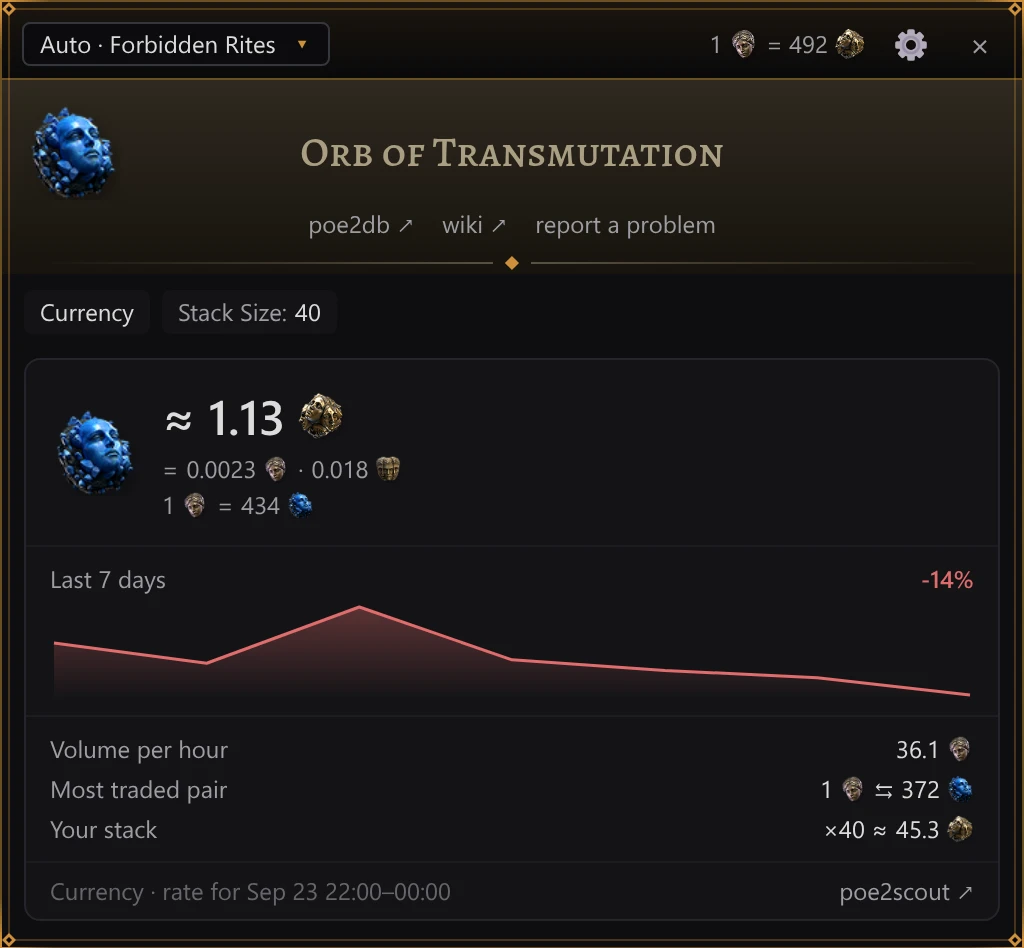
Items traded on the in-game Currency Exchange (currency, omens, runes, essences, catalysts, soul cores, fragments, uncut and lineage gems, plain waystones and the like) are priced from GGG’s own record of the trades made on the exchange instead of trade listings. GGG publishes it hour by hour, a few minutes after each hour ends: the price is the average rate of the last complete hour’s trades, or of up to three hours for an item traded rarely. The hours downloaded are kept, so without an internet connection the card shows the last ones saved. The market card shows:
- ≈ price with the icon of a Divine Orb or an Exalted Orb, and under it the same value in the other core currencies, each with its icon;
- for cheap items, how many of them one Divine Orb buys;
- Last 7 days: the price change in percent over the last seven days on poe2scout, with a chart of daily prices; days without a price are gaps. “not enough data” means what it says;
- Volume per hour, in Divine Orbs;
- Most traded pair: the rate of the pair this item is traded in most;
- Your stack: “×N ≈ …”, what the whole stack you checked is worth;
- the item’s group on the exchange and “rate for 09:00–10:00”: the hours the price comes from, on your computer’s clock, with the date when they are not today’s; and a poe2scout ↗ link to the item’s page on poe2scout.
When the exchange has no recent trades
Not every exchange item changes hands every hour: in a small league such as Standard many don’t. For an item without trades in the last hours:
- if poe2scout has a price, the panel says “Nobody traded this item on the Currency Exchange in league in the last hours.”, shows poe2scout price: and offers the button Trade site listings. The trade site is searched only when you click it, since every search counts against its request limit;
- without a poe2scout price, the trade site’s listings are searched right away, under the same note.
If GGG’s exchange data cannot be reached and none is saved, the panel says “GGG’s Currency Exchange data is unavailable right now.” and prices the item from poe2scout the same way; if poe2scout cannot be reached either, it shows the trade site’s listings. “No listings on the trade site” means the trade site has no listings of the item.
In a private league
A private league trades too little on the Currency Exchange to price anything by: even a busy one makes a few dozen trades in half a day, and poe2scout does not list private leagues. So the market card, the Divine Orb rate in the title bar and the poe2scout price of uniques come from the public league yours is made from, the one its page on pathofexile.com names. Until the app has read that page (signed out, say), it takes the current league, or its hardcore twin for a league with “HC” or “Hardcore” in its name (Forbidden Rites and HC Forbidden Rites this season). The card says so in a line under the price, “Prices from league: a private league trades too little on the exchange.”, and so does the rate’s tooltip. Take them as a guide: a small league’s own rates can be far from the public league’s. Trade site searches, listings included, stay in your league.
Unique items
An identified unique is searched by its name. Above the results, poe2scout price: shows its price on poe2scout, with the currency’s icon; in a private league, the public league’s price, which the line names (In a private league).
An unidentified unique is compared with unidentified uniques of the same base. It has no poe2scout line, since its name is not known yet.
Waystones
A waystone’s modifiers start unselected: its tier and properties decide the price. You can mark modifiers to spot them at a glance on every waystone you check:
- click the ◇ at the end of a modifier row. Each click moves the mark on: danger (red) → caution (orange) → wanted (green) → no mark. A marked row shows ◆ in the mark’s colour; to clear the mark, click it until it is ◇ again;
- marked modifiers are listed under the filters: Danger:, Caution:, Wanted:;
- while none of this waystone’s modifiers is marked, the panel reminds you: “◇ at the end of a modifier marks it: danger, caution or wanted”.
Marks are saved in PoE2 Oracle’s settings file, not shown in the settings window, and apply to the same modifier on every waystone, in both client languages. Marking a modifier does not add it to the search.
Vendor gambles
A vendor’s gamble offer (“Random Helmet” and the like) is not searched. The panel says “This is a vendor’s gamble: which item it is shows only once you buy it. Items like this aren’t sold on the trade site.”
Messages
| Message | Meaning |
|---|---|
| “Loading trade site data…” | Loading the trade site’s data. Happens on the very first start and takes a few seconds. |
| “No data from the trade site — no internet connection, or the site is down. Retrying automatically.” | The trade site’s data could not be downloaded: no internet, or the site is down. The app retries by itself. |
| “Hover over an item and press Ctrl+E” | Point at an item and press the hotkey. |
| “Searching…” | Searching. |
| “Loading exchange prices…” | Loading the Currency Exchange’s prices for an exchange item. |
| “Trade API request limit — waiting Ns…” | The trade site’s request limit is close; the app waits N seconds and then searches. |
| “The trade site has limited searches for a while — try again in 9m 50s.” | Searches are on hold: the trade site has locked searches from your IP address for a while, or its limit would need a wait longer than 15 seconds. Search again after that time; Currency Exchange prices keep working. See Request limits. |
| “Can’t reach the trade site — check your internet connection and try again.” | The trade site could not be reached. Check your connection and search again. |
| “The trade API refused the request (HTTP …): …” | The trade site refused the search; its own message follows. |
| “The trade site searches the “sum” rows only for a signed-in account, and it isn’t accepting this app’s sign-in now…” | The search had a ticked sum row, and the trade site did not accept PoE2 Oracle’s sign-in. Search without sums builds the rows again without sums, as a signed-out search does, and searches once; Sign in opens the pathofexile.com sign-in page. |
| “The trade site finds this search too complex: uncheck some rows and search again. Signed in, the site allows more.” | The search has more rows than the trade site takes. Untick some rows and search again, or sign in to pathofexile.com in the settings. |
| “Search failed: …” | Any other search error. |
| “Nothing found” | No listings match. Buttons under it offer broader searches, one trade search each: Broad −10% and Match N of M. “Nothing found — not even with N of M selected stats” means that Match N of M found nothing either. See When nothing matches exactly. |
| “Nobody traded this item on the Currency Exchange in … in the last hours.” | This exchange item has not been traded in your league in the last hours; poe2scout’s price or the trade site’s listings are shown instead. See When the exchange has no recent trades. |
| “GGG’s Currency Exchange data is unavailable right now.” | GGG’s exchange data could not be reached; poe2scout’s price or the trade site’s listings are shown instead. |
| “No listings on the trade site” | The trade site has no listings of this exchange item. |
| “The game runs as administrator, and Windows doesn’t let PoE2 Oracle press keys in it…” | The game runs as administrator and PoE2 Oracle doesn’t, so nothing was copied. Start the game normally, or run PoE2 Oracle as administrator too. See Troubleshooting. |
| “The game doesn’t copy the item: another program takes Ctrl+Alt+C…” | Another program holds the copy shortcut, so the game never copied the item. See Troubleshooting. |
| “Couldn’t read the item…” | The item text could not be read. The button Report a problem under the message opens PoE2 Oracle’s report window with Item selected and the item’s text attached: describe what went wrong and click Send. See Reporting a problem and Troubleshooting. |
Request limits
The trade site limits how many requests one IP address may make in a given time, and it counts every request from it: PoE2 Oracle’s, the trade site open in your browser and any other trade tool on the same connection. A price check costs one search and one request for the 10 cheapest listings. PoE2 Oracle reads the limits from the site’s answers:
- when the next search would break a limit and the wait is 15 seconds or less, the app waits, saying “Trade API request limit — waiting Ns…”, and then searches by itself. It does not sit out a longer wait: the search stops with “The trade site has limited searches for a while — try again in …” and the time left;
- when the trade site refuses a request, it locks your IP address out for a while, often for minutes. PoE2 Oracle then sends no trade request at all until the lockout ends and says when to try again: “The trade site has limited searches for a while — try again in 9m 50s.” Currency Exchange prices keep working meanwhile.
Repeating an identical search within two minutes does not send a new request.
Quick actions
Quick actions are hotkeys that type into the game for you: a chat command or message, or a search string for the stash or a vendor’s window. Set them up in the settings, section Quick actions. You can have up to 12.
Out of the box there is one action, /hideout, without a hotkey: record a key for it to use it.
Setting up an action
- Click + Add action. A new row appears with the cursor in its text box.
- Pick its kind: Chat or Stash.
- Type the text: a command or message for chat (the box suggests
/hideout, /exit, @last thanks…), or a search string for the stash (the box suggests “Search text, e.g. from poe2.re”). The action is saved as soon as you press Enter or leave the box. - Click the key field, which reads “no key”, and press a combination: one of F1–F12, or Ctrl or Alt with a letter or a digit. The key works once you close the settings window: while it is open, hotkeys do nothing. Backspace leaves the action without a key; Esc keeps the old one.
Like everything in the settings, changes apply at once: there is no Save button. The × at the right of a row removes the action. An action without text is not saved. A key cannot be the price-check hotkey (“The price check already uses this combination”) or another action’s (“Another quick action already uses this combination”); otherwise the same rules apply as for the price-check hotkey.
Chat actions
PoE2 Oracle presses Enter to open the chat, pastes the text and presses Enter
to send it. If the text does not start with a chat channel sign (#, %, @, $, &) or a
command’s /, whatever the chat box already held is selected first, so the text replaces it.
@last stands for the last player who whispered you:
| Text | What happens |
|---|---|
@last thanks | Answers that player with “thanks” |
/invite @last | Sends the command with that player’s name in place of @last |
@last | Opens a whisper to that player and waits for you to type |
Only a separate @last counts: the whole text, at the start followed by a space, or at the end
after a space. @lastochka hi is sent as it is.
Stash search actions
Open the stash or a vendor’s window first. PoE2 Oracle presses Ctrl+F, which puts the cursor in the window’s search box, pastes the text and presses Enter; the game highlights the matching items. The search string is used exactly as you typed it. Tools such as poe2.re build such strings for you.
Commands that are never sent
Some chat commands destroy something or change it for good. A mis-pressed key must not do that,
so quick actions never send these, in any letter case and also after a chat channel sign or
@last (%/destroy, @last /destroy):
| Command | What it does in the game |
|---|---|
/destroy | Destroys the item on the cursor |
/clear_ignore_list | Empties your ignore list |
/convertracereward | Destroys the race reward unique on the cursor, turning it into an account-bound skin |
/ResetAtlas | Resets your Atlas (the game allows it only when no map is left to run) |
If an action’s text is one of them, a warning appears under it, for example “The /destroy command
destroys the item — quick actions don’t send it”, and that text is not saved: the action keeps its
last allowed text (a new action, none) until you write another. Stash search actions are checked
the same way. Any other text, such as @last thanks, is sent as you wrote it.
Good to know
- Quick action hotkeys work only while the game is the window in front and the settings window is closed. In every other program those keys keep their usual meaning.
- The text arrives through the clipboard, so text in any language arrives intact whatever your keyboard layout. Your clipboard is put back right after.
- Each press sends one message: holding the key down sends it once, and a press while an action is still typing is ignored.
- If another program already holds the key you press, the row says so, for example “F7 is taken by another program — F5 stays”, and the action keeps its previous key (a new one, none).
- The actions press combinations in the game: Ctrl+F for a stash search, Ctrl+V to paste, Ctrl+A and Ctrl+Enter for some chat texts. A program that holds one of them as its own hotkey gets that press, and the action may not work. Each time you open this section, it checks, and a gold-framed box at its top names such a combination: “Ctrl+F, which quick actions press in the game, is taken by another program…”. Free it in that program’s settings.
- If the game runs as administrator and PoE2 Oracle doesn’t, Windows keeps its keys from the game: an action’s key then opens the price panel, which says so. See Troubleshooting.
XP overlay
PoE2 Oracle sets its experience readout on top of the game’s own HUD. On the rail along the top of the flask panel, left of the experience bar, stands a plate that tells how fast you gain experience and when the next level comes, with a ⚙ at its end that opens the settings. With the map timer on, a plate on the skill panel’s rail shows the current map. The plates stand on the rails, never over them – the game fills the rails with its rage and stun gauges – and are drawn pixel by pixel in the HUD’s own molding and colours. At its outer end each plate runs on to the frame of its globe, life or mana, filling the gap there to the pixel; at its inner end it curls down onto the tip of the game’s scrollwork in one smooth curve. The overlay is on by default; the settings section XP overlay turns it and its parts on and off.
Above the flask panel:
64.8% ◆ +12.4%/h · level 75 in 2h 50m
Above the skill panel:
map 4:07 +1.2% · avg 6:30
| Part | Meaning |
|---|---|
64.8% | How much of the current level is done. Shown with Level percentage, off by default, and always in a pause. |
+12.4%/h | Experience per hour (h) of play, in percent of the current level. |
level 75 in 2h 50m | Playing time to level 75 at this rate: 2 hours 50 minutes. next level in while the app can’t tell which of your characters you are playing, and so your level (see How it works); — when there is no estimate. |
map 4:07 +1.2% | Time in the current map and the experience it gave. Shown with Map timer, on by default. Dimmed once you leave the map; five minutes later it reads last map. |
avg 6:30 | Average time of the maps finished this session. |
Each line says as much as its plate has room for. When the whole wording doesn’t fit, the flask
panel’s line drops the level (64.8% ◆ +12.4%/h · 2h 50m) and then the percentage
(+12.4%/h · 2h 50m); the map line drops the average and last. For the first couple of minutes
the line reads measuring rate…. Times use m for minutes, h for hours and d for days. With
the Russian interface language, the lines are in Russian:
64,8 % ◆ +12,4 %/ч · до 75 ур. 2 ч 50 мин.
In a town or hideout, and after five minutes of play without experience or a change of area, the line dims and says only how much of the level is done, with Level percentage off too: the rate and the time to level would still be those of the play before.
64.8%
The map line drops the average. In a town or hideout it keeps the map you left, dimmed; in an idle pause inside a map it stays lit, and the map’s time keeps running. The pause does not change the rate: it is back as it was when you play again.
How it works
- Every two seconds PoE2 Oracle reads how full the experience bar is, straight from the screen, and
reads the game’s log (
Client.txt) for level-ups, area changes and returns to character selection. While the game is behind another window, where no experience comes in, it looks at the bar only every ten seconds, and two seconds after a look that finds it changed or can’t read it. Started in the middle of a session, it reads back through the log with the time of each line: your character’s level (if it levelled up in that stretch), the map you are in or left, with its time so far, and how long you have been in town or the hideout. Only a map already under way when the log’s last stretch it reads begins is left out, since its start isn’t there. After a restart for an update it doesn’t start over: the rate, the time to the next level and the map timer go on as they were. - The level comes from a level-up line in the game’s log and, until the log names it, from where
the bar stands. PoE2 Oracle keeps on your computer the level of your last 20 characters and where
each one’s bar stood when you last played it (see
Privacy); the first time, it reads the levels back
from the end of the log. It writes the positions down as you play: right after a level-up, soon
after you change area or log out, otherwise once a minute, and when the app quits. After a
restart or a login it compares the first bar reading it accepts with those positions: if exactly
one character’s bar stood within 0.3% of it, that is you, and the plate gives the level again
instead of
next level in. The first time, before any position is known, it takes your most recent character; if you play another, your next level-up corrects that. If none fits, or more than one, the plate saysnext level inuntil your next level-up. So it does if the app was ended without warning in the middle of a map, by a power cut or Windows shutting down: the position it kept can then be up to a minute behind. - The rate weighs recent play more. With Rate smoothing at 10 minutes, the default, play from 10 minutes ago counts half as much as play now. Choose 5 minutes to see a change of farming sooner, or 20 or 30 for a steadier number.
- Time in towns and hideouts does not count towards the rate. A level-up does not reset it, and neither does a death: the death costs experience, the rate stays.
- The map timer pauses, dimmed, when you leave the map, and continues when you go back into the
same map through its portal, even once it reads
last map. A map counts as finished when you enter a different map, whether or not you completed it. Returning to character selection starts everything over, since you may come back as another character: the rate (measuring rate…again), the level (found again from where the bar stands, as after a restart) and the map statistics. - Ascendancy trials (the Trial of the Sekhemas and the Trial of Chaos) are never part of a map, but count as play for the rate.
- If something covers the bar for more than a few seconds (a loading screen, the passive tree, the price panel), that time counts only when you earned experience behind the cover, as in a fight with the price panel open, and the bar was back within a minute; otherwise neither that time nor the experience earned in it counts. The plates themselves follow their rails, not the bar: a loading screen or the passive tree takes them down with the HUD, and the price panel hides only a plate it stands over (see Requirements).
Requirements
- The game window must be at least 720 pixels tall and not minimised.
- The game must run in Windowed or Windowed Fullscreen mode, like everything PoE2 Oracle draws over it.
- The plates are the size of the game’s HUD at the game’s resolution; the Interface scale setting does not change them. They let clicks through to the game, all but the ⚙, and the price panel hides one only while the panel stands over it: dragged there, or wide enough to reach it by itself (a 4:3 or 5:4 game window, a large Interface scale). While the game is in front, a plate steps aside the moment a tooltip, the chat or another part of the game’s interface covers its rail, and is back the moment it goes. What the game puts over a rail while you leave the mouse and keyboard alone, such as a loading screen that comes a while after a click, takes a plate down within two seconds. Behind another window the game still shows a tooltip under the pointer; a plate then steps aside within four seconds, and is back within two.
Settings
Open the settings in any of these ways:
- a click on the tray icon, or its menu (right click) → Settings;
- a click on the PoE2 Oracle button on the taskbar, if you show one, or picking it in Alt+Tab or Task View;
- the gear ⚙ on the price panel;
- the gear ⚙ at the end of the XP overlay’s plate above the flask panel;
- a click on the plate that says an update went in (Updates), anywhere but its ×;
- start PoE2 Oracle again while it is already running: the running copy opens its settings.
If the settings window is already open, any of these brings it to the front.
The window opens in the middle of the monitor the game is on and stays on top of the game. Drag it by its title bar; resize it by its edges. The sections are listed on the left: General, Price check, Quick actions, XP overlay, Account, Help and What’s new. The chosen section’s settings are on the right.
Every change applies and is saved at once: there is no Save or Cancel button. Text in a box applies when you press Enter or Tab, click elsewhere or close the window; Esc in a box puts the old text back. The × in the title bar or Esc closes the window; with the league list open, Esc closes that first.
While the settings window is open, the price panel is hidden and the price-check hotkey is off, so that you can record a new one.
A gold-framed box at the top of General shows warnings marked ⚠ about your setup, such as the game running as administrator, exclusive Fullscreen or the copy shortcut held by another program. See Troubleshooting.
This page names the settings as the English interface shows them; the interface language switches them to Russian.
General
Section General: groups League and language (the league and both languages), Window (the interface scale), System and Updates.
League
Row League: a list of where prices are searched.
- Auto · league (the default): the trade site’s current league, the first one it lists.
- Any league the trade site lists, named the way the site names it in the interface language (www.pathofexile.com’s names in English, ru.pathofexile.com’s in Russian), as on the price panel’s league chip.
- Private league · name: each of your account’s PoE 2 private leagues, as pathofexile.com’s Private Leagues page lists them, while you are signed in (Account).
- The league you picked, when it is none of these: one the trade site no longer lists, under its trade site id (its English name), or a private league while you are signed out or it is no longer on your account (Private league · name).
Notes under the row’s name: “Loading the league list from the trade site” or “The league list from the trade site didn’t load”; “The trade site no longer lists this league — searches go to the current one” means the league you picked has ended and searches go to the current league instead. Signed out, the row adds that your private leagues show up here once you sign in. With a private league picked, it names the public league its exchange and poe2scout prices come from (see In a private league); signed out, it warns instead: “Without a sign-in the site won’t answer searches in a private league — sign in, in “Account””.
Game client language
Row Game client language: Auto (the default), Русский (Russian) or English. On auto, the language of each item is recognised from its copied text. The language decides how the item text is read and which trade site is searched: ru.pathofexile.com for a Russian client, www.pathofexile.com for an English one.
Interface language
Row Interface language: Auto · language (the default), Русский (Russian) or
English, each language named in its own words. It is the language of PoE2 Oracle’s own words:
the settings, the price panel, the overlays, the tray menu, the messages and the way numbers are
written (15.1% in English, 15,1 % in Russian). What comes from the game and the trade site keeps
its language: item names and mod lines as the client copied them, league names as the trade site
gives them. A change applies at once, in every open window.
Auto follows the game client’s language, which the game’s own settings file names; before the game has ever run, it follows the Windows display language. Its choice names the language it stands for now, for example Auto · English.
The interface language also picks the pathofexile.com sign-in page (see Account), the language Craft of Exile opens in and the trade site whose league names the league lists show.
Interface scale
Row Interface scale: 100% by default, from 80 to 150% in steps of 5, with the − and + buttons. It sizes the text and controls of the price panel (its width too) and of the settings window, which grows or shrinks around the pointer, so the − and + buttons stay under it. The price panel keeps its place beside the inventory or the stash and grows away from it. The XP overlay is part of the game’s HUD and takes its size.
System
Group System.
- Where to show the app: In the tray (the default), On the taskbar or Both, with the note “The icon by the clock or a button on the taskbar: a click on either opens these settings”. In the tray keeps PoE2 Oracle’s icon in the notification area next to the clock; On the taskbar keeps a PoE2 Oracle button on the taskbar for as long as the app runs; Both shows the two. While that button shows (On the taskbar or Both), the settings and report windows have no taskbar button of their own. A change applies at once. See The tray icon and the taskbar button.
- Start with Windows, off by default. It adds PoE2 Oracle to the apps Windows starts when you sign in; the installer’s last page has the same option. Turning it on here also re-enables it if it was disabled in Task Manager’s startup apps.
Updates
Group Updates. See Updates and uninstall for how updates work.
- Update automatically, on by default: stay connected to oracle.pushka.biz, and install new versions and new game data within minutes of their release, the app restarting once none of its windows is open. Off, the app doesn’t connect to oracle.pushka.biz for updates; only a report you send goes there. The installer’s first page has the same box, for a choice before the first start.
- The row under it names the app’s version and its game data’s (“Version X.Y.Z · game data N”) and says what the updater is doing: “Connecting to oracle.pushka.biz…”, “Connected to oracle.pushka.biz” with “You have the latest version”, “No connection to oracle.pushka.biz — will connect when the internet is back”, “Downloading version X.Y.Z…” or “Downloading new game data…”, that a version or new game data is ready and goes in once the app’s windows are closed, or “Couldn’t update to version X.Y.Z: why. Will try again later” (“Couldn’t update the game data: why. Will try again later”). Off, it reads “Off: the app doesn’t connect to oracle.pushka.biz; new versions are on the website”. Check now, shown while the switch is on, connects at once and retries a failed download right away.
Price check
Section Price check: groups Hotkey, Search and Panel.
Hotkey
Group Hotkey, row Price check. Click the key box and press the new combination: it takes over from the old one as soon as you close the settings window. Esc or a second click on the box keeps the old one.
A combination can be Ctrl or Alt (with or without Shift) plus a letter A–Z or a digit 0–9, or one of F1–F12, alone or with modifiers. Letters are physical keys: Ctrl+E stays the same key when the Russian keyboard layout is on. The box refuses a combination and says why:
| Message | Reason |
|---|---|
| “Letters and digits need Ctrl or Alt — otherwise the key would stop typing” | Without Ctrl or Alt the letter or digit would stop typing everywhere |
| “Ctrl+C is taken: the app copies items with it” | Ctrl+C is how the item gets copied |
| “Alt+F4 closes windows, the game included” | Alt+F4 closes windows, the game included |
| “Combinations with the Windows key aren’t supported” | Combinations with the Windows key are not supported |
| “Only letters A–Z, digits 0–9 and F1–F12 work” | Other keys can’t be used |
| “Another quick action already uses this combination” | A quick action already uses it |
If another program already holds the combination, the box says so, for example “F7 is taken by another program — Ctrl+E stays”, and your previous hotkey keeps working. While the tray icon shows (In the tray or Both), its tooltip names the hotkey in use.
Search
Group Search.
- Default sellers: which sellers every new check searches. Instant Buyout (the default: you buy in the game and the seller need not be online), Buyout or In Person (instant buyout and sellers online), In Person (sellers online) or Any (everyone, offline too). The sellers choice beside Search on the price panel, which shows only its current value, such as Instant Buyout, still switches it for one item. Settings saved by an older version with its default, buyout or in person, move to Instant Buyout once; after that, your choice stays.
- Seller column, on by default: the seller’s account name in the results table.
Panel
Group Panel.
- Close on a click outside, off by default: a click in the game outside the price panel closes it, as Esc does; with a league or profile menu open, the click closes that first. The click itself still reaches the game. A click on the panel, or outside the game’s window (on another monitor, say), does not close it. Off, the panel closes only with Esc or its ×.
Quick actions
Section Quick actions, group Actions: hotkeys that type chat commands or stash searches into the game. Each action has its kind (Chat or Stash), its text, its key and a ×; + Add action is below them. If another program holds a combination the actions press, such as Ctrl+F, a gold-framed box at the top of the section says so. See Quick actions.
XP overlay
Section XP overlay, group XP line. See XP overlay for what it shows.
| Setting | Default | Meaning |
|---|---|---|
| Show the XP overlay | on | Show the experience rate and the time to the next level above the flask panel |
| Level percentage | off | Also show how much of the current level is done; a pause always shows it |
| Map timer | on | Show the time in the current map, the experience it gave and the session’s average map time above the skill panel |
| Rate smoothing | 10m | 5, 10, 20 or 30 minutes. Shorter shows a change of farming sooner, longer reads steadier |
Account
Section Account: group pathofexile.com, and Private leagues while you are signed in. Signing in to pathofexile.com is needed to search private leagues, for the sum rows among the filters and for the trade site’s buttons on listings, To hideout and Whisper (see The trade site’s buttons).
-
pathofexile.com. The row tells what is known about your sign-in: “Sign in through the window that opened” while the sign-in window is open, “Not signed in”, “Checking the sign-in…”, “Signed in as account” (or “Signed in” when the site’s page doesn’t name the account), “Session expired” (the site no longer accepts it) or “Couldn’t check the sign-in” (the check got no verdict: no connection, or an answer such as HTTP 503; the session is used as it is, and the line under it gives the reason). Sign in opens pathofexile.com’s sign-in page in the app’s own window, in the interface language (www.pathofexile.com in English, ru.pathofexile.com in Russian; both keep the same session): sign in as usual, through Steam too, and the window closes by itself. The session is kept in Windows’ Credential Manager and sent to pathofexile.com only. Sign out makes PoE2 Oracle forget the session; you stay signed in on the site. The sign-in window needs the Microsoft Edge WebView2 Runtime: without it, a click on Sign in puts “Signing in needs the Microsoft Edge WebView2 Runtime, and this computer doesn’t have it.” under the row, with a link Download from Microsoft. If the window can’t open, the row says “Couldn’t open the sign-in window: reason”; if Windows doesn’t keep the session, “Couldn’t save the sign-in: reason”. Such a line stays until the next Sign in.
-
Private leagues, a card under the sign-in while you are signed in: your account’s PoE 2 private leagues, as pathofexile.com’s Private Leagues page lists them. The league menus, in General and on the price panel, offer the same leagues: nothing needs typing. Exchange and poe2scout prices come from the public league yours is made from: see In a private league.
- Your leagues names each league and the public league it is made from (“HC FRites League by Cardiff (PL86503) based on HC Forbidden Rites”), with the note “They’re in the league menus: in “General” and on the price panel”, or says “None on this account yet. After joining one, press “Refresh””. Refresh looks them up again: meanwhile the button reads Refreshing… and the row “Looking them up on pathofexile.com…”; then the row says “Found N private leagues”, shows that there are none, or says “Couldn’t reach pathofexile.com: reason” and keeps the list it had. The league menus follow at once. Until the first list comes, the row also says that it’s looking, or why it couldn’t.
- Refresh automatically, 1h by default: Off, 15m, 1h or 6h. While you are signed in, the leagues are looked up again that long after the last lookup, quietly: nothing opens or pops up, only the log notes it. A change applies at once. They are also looked up when the app starts with a saved sign-in, when you sign in, and each time the settings window opens.
Help
Section Help, group Help.
- Tutorial → Replay runs the short guided tour again: the settings and the league, a price check, the price panel and the XP overlay, one at a time.
- Report a problem or idea, with the note “Straight to the developer from the app, no account
needed. “Collect report” saves the logs, settings and unread item texts to your desktop in one
archive, with your Windows user name hidden”:
- Write to the developer opens the report window: write what went wrong or what you’d like, and PoE2 Oracle sends it to the developer. You need no account.
- Collect report only saves the report: a zip with the logs, the settings and the item texts the app could not read, on your desktop, shown in File Explorer. Your Windows user name, if it has three characters or more, is hidden in it. Then the row says “Saved: path”. See Troubleshooting.
- Logs folder → Open opens the folder with the logs of this run and the one before.
- About: PoE2 Oracle’s version and license. Licenses opens
THIRD-PARTY-NOTICES.html, which the installer puts next to the app: the licenses of everything it includes. Website ↗ opens the app’s site, oracle.pushka.biz, in the interface language. - Quit the app → Quit closes PoE2 Oracle, as Quit in the tray icon’s menu and Close window on the taskbar button do. The note says “Price checks, quick actions and the XP overlay stop until you start it again from the Start menu”.
What’s new
Section What’s new: what changed in each version of PoE2 Oracle, newest first. Every version is a group titled with its number and the day it came out (0.1.7 · Oct 6, 2026), and the version you have is marked installed. A group lists the changes by kind, Added, Changed or Fixed, each with its summary in bold and the details after it. The list is in the interface language and built into the app, so the section needs no internet and starts with the version you have. A newer version’s changes are on the guide’s What’s new page, and show here once you have installed it.
Where the settings are kept
%APPDATA%\poe2-oracle\config\settings.json, together with your waystone marks and quick actions.
If that file ever cannot be read, PoE2 Oracle renames it to settings.json.bak and starts from the
defaults.
Updates and uninstall
Updates
PoE2 Oracle keeps itself up to date from oracle.pushka.biz, the app’s own site, while Update automatically is on in the settings (section General, group Updates; on by default, and the installer’s first page has the same box). Nothing needs a click.
- Staying connected. About 10 seconds after it starts, once the trade site’s catalogs are in, the app connects to oracle.pushka.biz and stays connected. The service tells it the latest app version and the latest game data version as soon as it connects, and again when one of them changes: within about two minutes of a new release. The first connection after each start also tells the service, in a few flags, that the app started, whether it is a first start, which version ran before and the interface language; the service only counts them (see What the service counts).
- A new version is downloaded at once: first the release’s
SHA256SUMSfile, whose Ed25519 signature PoE2 Oracle checks with the key built into the app, then the installer, whose SHA-256 checksum must matchSHA256SUMS. The signing key stays where releases are built, so neither oracle.pushka.biz nor anyone on the way can hand you an installer of their own. Then the app closes, the installer runs silently, and the new version starts by itself a few seconds later. Your settings and your start-with-Windows choice stay as they were. - New game data — the tables PoE2 Oracle reads items with: the ways the game client prints a modifier that the trade site’s catalog lacks (in both client languages), the modifier tiers, the Currency Exchange’s items, and items’ English names, pictures and bases — comes as a game data pack, checked the same way before it is used. The app unpacks it and restarts itself to load it; the program itself isn’t reinstalled.
- Not while you use it. An update waits while any of the app’s windows is open: the price panel, the settings, the report window, the pathofexile.com sign-in window or the tour; and while a price check or a quick action is still putting your clipboard back. It goes in the moment the last of them is over. It doesn’t wait for the game: with none of those windows open, the app restarts even while you play.
- After the restart a plate at the bottom right of the screen the game is on (with no game running, the screen under the mouse pointer) says “PoE2 Oracle updated to X.Y.Z” or “Game data updated” for 8 seconds. It never takes the keyboard from the game: × closes it, and a click anywhere else on it opens the settings. The XP overlay comes back as it was, with its rate, time to the next level and map timer, rather than measuring afresh.
- Without internet the app connects again by itself: a few seconds after a failed attempt, then less often, up to about 5 minutes apart. On Windows 10 version 2004 and later it connects at once when Windows says the internet is back.
- When something fails — the download, a signature or checksum check — nothing runs, and the app quietly tries again later: after a minute, then after longer waits, at least once an hour. With a bad signature the installer isn’t even downloaded, and a download that doesn’t match its checksum is deleted. An update that is downloaded but can’t be started (an antivirus blocking the installer, say) isn’t downloaded again: the app tries only the start again, a minute later and then two minutes later, and after the third failure leaves that version until the next start. An update that didn’t take after its restart is tried again only at the next start, and so is a game data pack this version of the app can’t use (one made for a newer version, or one that fails its checks when unpacked); the settings say why.
In the settings, section General, group Updates, the row under the switch names the app’s version and its game data’s, and says what is going on: connecting, connected, “No connection to oracle.pushka.biz — will connect when the internet is back”, “You have the latest version”, a download under way, an update that is ready and waits for the app’s windows to close, or why the last try failed. Check now connects at once instead of waiting for the next attempt, retries a failed download right away, and a failed start as soon as the app’s windows are closed.
With Update automatically off, PoE2 Oracle doesn’t connect to oracle.pushka.biz for updates: nothing is downloaded or installed, and only a report you send yourself goes there. You can update by hand then: download the new installer from oracle.pushka.biz and run it. It installs over the old version, into the same folder, and keeps your settings.
Downloaded installers are kept in %LOCALAPPDATA%\poe2-oracle\cache\updates; the next update
removes the old one. A game data pack is deleted from there once it is unpacked.
The unpacked game data is kept in %LOCALAPPDATA%\poe2-oracle\data\game-data. At each start the
app uses it only while it is newer than the tables built into the app and made for this version of
the app or an older one, and only if every table still matches its checksum and reads without an
error. An installed pack that the next app update has caught up with is deleted, and so is one
made for a newer version, found after going back to an older one; a damaged one is moved to
game-data\rejected, and the app uses its built-in tables.
Uninstall
- Open Windows Settings → Apps → Installed apps (on Windows 10: Apps & features).
- Find PoE2 Oracle and choose Uninstall.
- If PoE2 Oracle is running, the uninstaller says “PoE2 Oracle is running and will be closed to continue.”: OK closes it, Cancel stops the uninstall.
The uninstaller removes the program, its Start menu shortcut, its start-with-Windows entry and the
saved pathofexile.com sign-in. Your settings and the downloaded data stay, ready for a reinstall,
unless you tick Settings and cache: “Also delete your settings and the downloaded price data.
Leave unticked to keep them for a reinstall.” Ticked, it deletes the folders
%APPDATA%\poe2-oracle and %LOCALAPPDATA%\poe2-oracle, logs and saved item texts included.
To remove them later by hand, delete those two folders.
What’s new
Every release of PoE2 Oracle, newest first; a section named Unreleased, when there is one, is what the next release brings. While Update automatically is on, the app installs a new release by itself (Updates and uninstall), and the site’s download button always gives the latest one.
[0.1.8] - 2026-10-06
Added
- Quality on every item. A weapon, armour piece, ring or amulet with quality now lists its quality among the price panel’s filters, unchecked: tick it to find items with at least as much. That includes a catalyst’s quality on jewellery, such as “Quality (Attack Modifiers): +62%”. The trade site’s quality filter can’t tell the kinds of quality apart, so it finds any kind.
Fixed
- Critical hit chance keeps its decimals. A weapon with 12.52% critical hit chance showed and searched 12%; now it’s 12.52%.
- Physical DPS on weapons with elemental damage. A weapon whose physical damage was under two thirds of its total, like a spear with added lightning damage, hid its Physical DPS filter. Now it’s listed whenever physical damage is at least 15% of the total, as elemental DPS already was.
- Links in What’s new. An address in a change no longer breaks in the middle across two lines: links read as words and open in your browser.
[0.1.7] - 2026-10-06
Added
- A click outside closes the panel, if you want. A new setting, Close on a click outside in the settings’ Price check section, lets a click anywhere in the game outside the price panel close it, as Esc does; the click itself still reaches the game. It’s off by default, so the panel still closes only with Esc or its ×.
- What’s new in the settings. A new last section of the settings, What’s new, lists every version’s changes, newest first, in the app’s language, and marks the version you have.
- A scrollbar in the settings. A section longer than the window shows a scrollbar on its right, so you can see there is more below and drag it.
[0.1.6] - 2026-10-01
Fixed
- The XP plate knows your level again after a restart. If a character had gained levels lately, the plate showed “next level in” instead of the level after you restarted the app or logged in. Now the level shows right away. The app also saves the XP bar more often, so even a sudden shutdown hardly throws it off. And if the plate still shows “next level in”, the level appears as soon as you reach the next one.
[0.1.5] - 2026-09-30
Added
- Update automatically, right on the installer’s first page. You can turn it off there, before the app ever starts, and it stays off until you turn it back on in the settings. With it off the app stays offline and never updates itself.
[0.1.4] - 2026-09-30
Changed
- Starts, installs and updates are counted, as numbers only. While Update automatically is on, the app tells oracle.pushka.biz when it starts, whether this is a fresh install, and your interface language, so these can be counted. No name, address or id is kept, and with Update automatically off nothing is sent. The installer’s privacy page and the guide say what is counted.
Fixed
- The XP plate shows your level again after a restart or a login. After a restart or a login the plate often didn’t know your level and showed “next level in” until your next level-up, which at high levels takes days. Now it works out your level on its own and shows it right away. If it can’t tell which character you’re on, it still shows “next level in” until your next level-up.
[0.1.3] - 2026-09-29
Fixed
- A light on the game’s XP bar no longer inflates your levelling speed. A warm light in the scene could make the overlay misread the empty part of the bar as filled and count the difference as experience: a player at level 93 saw +186%/h where the real rate was about +40%/h. The overlay now reads the bar correctly through such light, and leaves a reading it isn’t sure of alone.
[0.1.2] - 2026-09-29
Fixed
- Automatic updates no longer give up on a slow download. If the installer was slow to start arriving, while an antivirus checked it, say, or on a slow connection, the app abandoned the update and kept retrying with the same result. Now it waits. Versions 0.1.0 and 0.1.1 still give up: if yours keeps saying “Couldn’t update to version 0.1.2” in its settings, download this version from oracle.pushka.biz and install it once by hand.
[0.1.1] - 2026-09-28
Added
- Extra logging for the XP overlay, to help track down a wrong levelling speed. How to turn it on is in CONTRIBUTING.
Fixed
- Resting the pointer on the game’s XP bar no longer inflates your levelling speed. Holding the pointer over the bar for its tooltip made the overlay read it as nearly full and count that as experience: a player at level 93 saw +250-350%/h for half an hour. The overlay now ignores the bar while the pointer is on it.
- Other brief misreadings of the bar no longer count as experience. A sudden jump or drop now has to hold for a moment before it counts, so a one-off misread that corrects itself changes nothing. A level-up the game reports still counts at once.
[0.1.0] - 2026-09-27
The first public release, on oracle.pushka.biz. The installer isn’t digitally signed yet, so Windows may say “Windows protected your PC”: click More info, then Run anyway.
Added
- Price check on
Ctrl+E. Point at an item in your inventory, your stash or a vendor’s window and press the hotkey (you can change it). A panel opens next to the inventory with the cheapest similar listings on the official trade site: price, item level, seller and how long ago each was listed. Hover a listing to see it the way the game’s tooltip shows it. Both the English and the Russian game client work: the search goes to the trade site in the item’s language. Drag the panel aside, and it opens there next time. - Filters you can adjust. Each of the item’s modifiers is a row with its tier and the range to search. Search profiles pick the rows for you: Quick price (up to four of the most valuable modifiers), Exact match, Broad −10% and Crafting base. One click widens or narrows the search: the item’s base or its whole class, its rarity, corrupted items, which sellers (instant buyout by default) and the currency of the price. When nothing is found, the panel offers a broader search.
- Currency Exchange prices. Currency, omens, runes, essences and everything else on the exchange get a market card priced from GGG’s own hourly record of the exchange’s trades: the value in divine, exalted and chaos orbs, a seven-day chart from poe2scout, the hourly volume and what your stack is worth. An item nobody has traded lately shows poe2scout’s price instead.
- Unique item prices from poe2scout, next to the trade search.
- The league on the panel, with the Divine Orb’s price in Exalted Orbs beside it; a click switches the league.
- Links to poe2db, the wiki and Craft of Exile. The Craft of Exile link opens the item in its crafting simulator with the base, item level, rarity and modifiers already set, from the Russian client too.
- Whispers. A click on the listing of a seller who trades in person copies the trade site’s whisper for the game chat.
- Waystone marks. Mark a waystone’s modifiers as danger, caution or wanted, and every waystone you check later shows them.
- Vendor gamble offers are recognised: instead of searching, the panel says the item is revealed only after you buy it.
- Sign-in to pathofexile.com, optional, on the site’s own page, in a window of the app. It adds your private leagues to the league menus by themselves, the sum filter rows, and the trade site’s To hideout and Whisper buttons on listings. The app never sees your password: it keeps only the site’s session, in Windows Credential Manager.
- The trade site’s limits respected. After the site refuses a search, the app sends it nothing until the lockout ends, and the panel says when to try again.
- XP overlay on the game’s HUD, in its own frames and colours. Above the flask panel: how fast you level, in percent of a level per hour, and the time to the next level. Above the skill panel: a timer for the current map, with the map’s experience and your average map time. Time in towns and hideouts stays out of the levelling speed: there its plate dims and shows only how much of the level you have. The plates step aside when a game tooltip covers them and let your clicks through to the game, except on the ⚙ that opens the settings.
- Quick actions: up to 12 keys of your choice that send a chat command (
/hideout,@last thanks) or type a stash search. One press, one command. - Settings for the league, the hotkeys, the quick actions, the default sellers, the interface scale (80 to 150%), the XP overlay, starting with Windows and updates. Warnings at the top say what keeps price checks from working: the game in exclusive Fullscreen or run as administrator, or another program holding the game’s item-copy keys.
- English and Russian interface, in the game client’s language by default.
- A tray icon, a taskbar button or both, as you choose; a click opens the settings.
- A welcome after installing and a short tour of the league setting, a first price check, the price panel and the XP overlay. Settings → Help → Tutorial shows it again.
- Automatic updates from oracle.pushka.biz. A new version or new item data installs by itself within minutes of its release, once none of the app’s windows is open, and a plate over the game says so after the restart. Nothing runs unless it carries the developer’s signature and arrived whole. Update automatically in the settings turns updates off.
- Reports to the developer from a window of the app, with no account: a problem, an idea, or an item read or priced wrong, with the item’s text and a diagnostics report if you like. After a crash, the next start opens this window with what the app reported attached. Without the app, the form on the site takes a problem or an idea.
- Installer for your Windows user, with no administrator rights needed: a Start menu shortcut and, if you like, a start with Windows. Its first page says what the app sends over the internet and links the privacy policy. Uninstalling keeps your settings unless you tick Settings and cache.
Troubleshooting and FAQ
The hotkey does nothing
Go through these in order.
- Is PoE2 Oracle running? Its icon must be in the notification area by the clock (maybe under the ^ arrow), or its PoE2 Oracle button on the taskbar, whichever Where to show the app in the settings shows. If neither is there, start it from the Start menu.
- Is the game the window in front, with the settings window closed? The hotkey works only while the game or the price panel is active, and not at all while the settings window is open: it is off then, so that you can record a new one. Close the settings window, click into the game once and try again. If you changed the hotkey, look in the settings, section Price check; while the tray icon shows, hovering it names the hotkey too.
- Does another program hold Ctrl+Alt+C? PoE2 Oracle checks prices by pressing the game’s own copy shortcut. If a graphics card overlay, a screen recorder or Discord has taken that combination, the game never receives it. The settings window then shows at the top: “Ctrl+Alt+C, which the game copies items with, is taken by another program…”, and after a failed check the panel says “The game doesn’t copy the item: another program takes Ctrl+Alt+C…”. Open that program’s hotkey settings and change or switch off Ctrl+Alt+C.
- Does another program hold your hotkey? If some program already uses Ctrl+E, PoE2 Oracle cannot take it. Pick another hotkey in the settings.
- Does the game run as administrator? Windows does not let a program without administrator rights press keys in one that runs as administrator, and a game that Steam starts runs as administrator when Steam does. PoE2 Oracle notices: the hotkey then opens the panel with “The game runs as administrator, and Windows doesn’t let PoE2 Oracle press keys in it…”, and the settings window warns about it at the top. Start the game normally, without “Run as administrator”, or run PoE2 Oracle as administrator too.
- Is the game in exclusive Fullscreen? Then the check may run, but Windows shows nothing over the game. Set the game’s display mode to Windowed Fullscreen. The settings window warns about this: “The game runs in “Fullscreen” mode: the panel can’t show over it. …”.
With no item under the cursor, pressing the hotkey does nothing at all; that is expected.
A quick action does nothing
- Is the game the window in front, with the settings window closed? Quick action keys work only then: they type into the game, and while the settings window is open, hotkeys are off.
- For a stash search: is the stash or a vendor’s window open? The action presses Ctrl+F to get into that window’s search box.
- Does the game run as administrator? Then the key opens the panel with “The game runs as administrator…”; see The hotkey does nothing.
- Does another program hold a combination the action presses? A stash search presses
Ctrl+F, every action pastes its text with Ctrl+V, a
chat message that starts without a channel sign or
/first selects the chat box with Ctrl+A, and@lastpresses Ctrl+Enter. A program that holds one of these as its own hotkey gets that press. When you open the settings’ section Quick actions, it checks and warns at the top, for example “Ctrl+F, which quick actions press in the game, is taken by another program…”. Change or switch off that shortcut in the other program’s settings; some trade overlays take Ctrl+F for their own price check.
The panel opens but shows no prices
| The panel says | What to do |
|---|---|
| “Loading trade site data…” | The first start downloads the trade site’s data. Wait a few seconds. |
| “No data from the trade site — no internet connection, or the site is down. Retrying automatically.” | Check that pathofexile.com opens in your browser and that your firewall or antivirus lets PoE2 Oracle connect. The app tries again by itself, and again every time you press the hotkey. |
| “Nothing found” | No listing matches. The buttons under the message search more broadly, one trade search each: Broad −10% searches the same ticked rows with each min 10% below your roll, Match N of M finds listings with all the ticked rows but one. You can also untick some filter rows, lower some min values, switch Base: … to Class: … or let other sellers in with the sellers choice beside Search, which shows only its current value, such as Instant Buyout. See When nothing matches exactly. |
“Can’t reach the trade site” message
“Can’t reach the trade site — check your internet connection and try again.” means the trade site could not be reached at all. Check your internet connection, whether the Path of Exile website is up (it may be down for maintenance) and whether a firewall, VPN or proxy blocks PoE2 Oracle. Then search again: click Search or press Enter in a filter box.
Request limit messages
- “Trade API request limit — waiting 5s…” is normal: the trade site’s limit is close, and the app waits a few seconds before searching.
- “The trade site has limited searches for a while — try again in 9m 50s.” means the trade site has locked searches from your IP address for a while, often for minutes. PoE2 Oracle sends no trade request until then. Wait that long, then search again; Currency Exchange prices keep working.
The trade site counts every request from your IP address: the site in your browser and other trade tools use the same limits. Many checks in a row, or several tools at once, run into them sooner. See Request limits.
An item is not recognised
When the item text cannot be read, the panel says “Couldn’t read the item” with the reason, “The item’s text was saved to …” with the file’s path, and a button Report a problem.
- “…only the English and Russian game clients are supported”: the item text is in another language, or not in the one chosen as Game client language in the settings.
- “…unknown item class “…””: the app does not know this item class yet.
Texts are saved to %LOCALAPPDATA%\poe2-oracle\data\unparsed; the last 100 are kept. The app also
saves there, without a message, items it read only partly: a modifier line it could not match
simply has no filter row.
Please report such items with the button Report a problem under the message, or, when an item was read but got wrong filters or a price that looks wrong, with the link report a problem under the item’s name. Both open the report window with the item’s text attached: describe what went wrong and click Send. You need no account.
My private league is not in the league menus
The league menus offer your account’s PoE 2 private leagues while you are signed in to pathofexile.com. If yours is missing:
- Open the settings, section Account. The sign-in row should say “Signed in as …”; if it says “Not signed in” or “Session expired”, sign in.
- The card Private leagues under it lists what pathofexile.com shows for your account. Joined the league after signing in? Click Refresh. The list is also looked up by itself, every hour by default (Refresh automatically).
- “Couldn’t reach pathofexile.com: …” means the lookup failed; the reason follows: no connection, or an answer other than the page, such as an HTTP error. The list you had stays. Click Refresh again later.
- Still missing? Open pathofexile.com in your browser, signed in to the same account, and go to Events → My Private Leagues. PoE2 Oracle lists the PoE 2 leagues that page shows. If the page shows yours and the app doesn’t, report a problem.
Collecting a diagnostics report
- Open the settings, section Help.
- In the row Report a problem or idea, click Collect report.
- A file
PoE2-Oracle-report-<date>_<time>.zipappears on your desktop and Explorer opens with it selected. Under the row, the settings window says “Saved: …” with the file’s path.
The zip holds plain text files:
summary.txt: the app’s version, league and state (catalogs, prices, hotkey, the last item checked), your Windows version, monitors, the game window’s size, and the display mode, language and copy key from the game’s settings file, plus the names and sizes of the cached files;logs/: the log of this run and of the one before;settings.json: your settings;unparsed/: the saved item texts.
Everywhere in it, your Windows user name, if it has three characters or more, is replaced with
%USERNAME%, and the paths of your user folder and of your Desktop, Documents and AppData folders,
wherever Windows keeps them, with %USERPROFILE%, %DESKTOP%, %DOCUMENTS%, %APPDATA% and
%LOCALAPPDATA%. Collect report only saves the file, so you can open it and read it first. The
same report goes to the developer only when you send a report from the report window
with Attach diagnostics on.
Logs folder → Open in the same section opens %LOCALAPPDATA%\poe2-oracle\data\logs, with
poe2-oracle.log for the current run and poe2-oracle.previous.log for the one before.
Reporting a problem
To tell the developer about a problem or an idea, click Write to the developer in the settings, section Help, or the link report a problem on the price panel for the item it shows. Either opens the report window; see Reporting a problem. If PoE2 Oracle won’t start, use the form on the site: see Without the app.
Windows Settings → Apps → Installed apps shows the installed version under PoE2 Oracle; the
settings show it too, in General → Updates (“Version X.Y.Z · game data N”), and the
first line of summary.txt in the report has it.
Questions
Does it work in exclusive Fullscreen? No. Windows does not show other programs over exclusive fullscreen. Use Windowed Fullscreen.
Which game languages are supported? The English and the Russian client. Other client languages are not read.
Which language is the interface in? English or Russian, as set in the settings, section General, row Interface language. On Auto, the default, it follows the game client’s language, or the Windows display language before the game has ever run. Only PoE2 Oracle’s own words change: item names, modifiers and the trade site’s texts keep their own language.
Does it need my account, password or session cookie? No. Without a sign-in, PoE2 Oracle prices items like a visitor who is not signed in. Signing in is optional: it opens private leagues, the “sum” rows and the trade site’s buttons on listings. You sign in on pathofexile.com’s own page in a window of the app; PoE2 Oracle doesn’t read or keep your password, only the site’s session, in Windows Credential Manager. See Account and Privacy.
Does it play for me? No. Each hotkey press does one thing: it copies one item, sends one chat message or pastes one search. A click on a listing only copies its whisper; you send it yourself. The trade site’s buttons on a listing, Whisper and To hideout, ask the site for one thing per press: to send that whisper, or to take your character to the seller’s hideout. The app presses nothing in the game for them.
PoE2 Oracle closed unexpectedly. What now? Start it again. If an error closed it, the next start within a week opens the report window by itself, once, with what the app reported at the crash already attached. Add what you were doing if you like and click Send, or close the window to skip it. See After a crash.
Where are my settings? How do I start over?
In %APPDATA%\poe2-oracle\config\settings.json. Quit PoE2 Oracle (Quit in the tray icon’s menu,
Close window in the taskbar button’s right-click menu, or Quit the app in the settings,
section Help), delete the file, and the next start begins with the defaults and the guided tour.
Reporting a problem
PoE2 Oracle has its own window for writing to the developer: about a problem, an idea, an item it read or priced wrong, or a crash. It sends your report to oracle.pushka.biz, the project’s own service, which passes it on to the developer. You need no account, on GitHub or anywhere else.
Opening the report window
- The settings, section Help: Write to the developer in the row Report a problem or idea.
- On the price panel, the link report a problem under the item’s name, when an item was read or priced wrong. Its tooltip says: “Tell the developer what’s wrong with this item; its text is attached”.
- The button Report a problem under an item the app couldn’t read (see An item is not recognised).
- After a crash, the next start opens it by itself: see After a crash.
The two item entry points open the window with the item attached. The window stays on top of the game like the settings window, can be resized, and follows the Interface scale. Opening it hides the price panel; opening it again brings the open window to the front.
Writing the report
A switch in the window picks what the report is about:
| Kind | When | The box asks |
|---|---|---|
| Problem | Something doesn’t work as it should. | “What happened, and how can it be repeated?” |
| Idea | Something you’d like PoE2 Oracle to do. | “What would you like the app to do?” |
| Item | Shown when the window was opened from an item. | “What’s wrong with this item’s price or reading?” |
| Crash | Shown only after a crash. | “What were you doing when it closed? (optional)” |
Write in the box, in English or Russian; it takes up to 8000 characters, and the counter under it counts them. Send stays unavailable while the box is empty, except for a crash, where writing is optional, and while the contact is over 200 characters.
Contact (optional): “Telegram, Discord or email — if you’d like an answer”. Up to 200 characters: a longer one is cut to 200 when you leave the field. Without it the report still arrives, but the developer has no way to answer you.
What’s attached
- Attach diagnostics adds the diagnostics report: “Logs, settings, unread item texts and a system summary. Your Windows name and folders are hidden.” It is on for Problem, Item and Crash and off for Idea; picking another kind sets it that way again until you switch it yourself. What’s inside saves the same zip to your desktop and shows it in File Explorer, so you can read it before you send it.
- With Item picked, the item goes along: the line “Item: name — its text is attached” names it. With Crash picked, what PoE2 Oracle reported when it closed goes along (see After a crash). Pick another kind and neither is sent.
The window also says what leaves your computer: “Sent to oracle.pushka.biz: your text, the contact if given, the app’s version and languages, and what’s attached. No account needed.” With the version and the languages go your Windows version, the league and the interface scale. Your pathofexile.com session never goes along. See Privacy for what the service does with a report.
Sending
Click Send; while the report goes, the button says Sending…, and the window stays open until the answer comes: Cancel, the × and Esc wait for it. Then the window says one of:
-
“Sent — thank you! Report #number”: the developer has it. Mention the number if you write about the same thing again. Sometimes the window says only “Sent — thank you!”: the report arrived all the same.
-
“Couldn’t send: reason”. The reason is one of these:
Reason What to do “no connection to oracle.pushka.biz” Check your internet connection, and whether a firewall, VPN or proxy blocks PoE2 Oracle. “the service is unavailable, try later” The service couldn’t take the report or pass it on right now: it was busy with other reports, the upload took too long, or neither of its channels to the developer answered. Try again later. “too many reports from your address, try again in N min” Reports from one address are limited. Wait that long. “the attachment is too large” What’s attached is more than the service takes. Switch Attach diagnostics off and send again. “the service refused the report” The service and this version of the app disagree on what a report may hold. Update PoE2 Oracle and try again. Try again sends the same report again. Save to desktop writes all of it into one zip on your desktop — your text and contact with the app’s details, the item’s or the crash’s text, and the diagnostics report when attached — and shows it in File Explorer, so nothing you wrote is lost. Close closes the window.
Cancel, the × or Esc close the window without sending; Esc first leaves the text box, a second press closes.
After a crash
If PoE2 Oracle stops on an error of its own, it writes the error down before it closes. The next start opens the report window by itself, with Crash picked and the line “PoE2 Oracle closed unexpectedly on date; what it reported is attached”. Attached: PoE2 Oracle’s version, the time, the thread, the error it stopped on, where in its code that happened and the backtrace, with your Windows user name and folders hidden, and the diagnostics report, on by default.
Writing what you were doing helps, but is optional. Send the report or close the window: either way it doesn’t come back for that crash. If you quit PoE2 Oracle while the window is open (Quit in the tray icon’s menu, say), it opens again at the next start. A crash more than a week old is forgotten without a word.
Without the app
When PoE2 Oracle doesn’t start at all, or you’d rather write from a browser, use the form on the site: oracle.pushka.biz/report.html. It sends a problem or an idea with your text and, if you like, a contact. It can’t attach an item or the diagnostics report, so for a problem the app’s window is better.
Privacy
PoE2 Oracle has no account of its own and no analytics of you: no id, no profile, nothing about your play. Its own service counts installations, in numbers only (see What the service counts). The app talks only to the services below: for prices and pictures, for updates and, only when you send one yourself, for a report to the developer. Signing in to pathofexile.com is optional; signed in, the app searches the trade site, and presses its buttons on listings when you do, with your session (see Signing in to pathofexile.com).
What is sent where
| Service | When | What is sent |
|---|---|---|
Path of Exile trade site: www.pathofexile.com and ru.pathofexile.com | The list of leagues and both sites’ catalogs (modifiers, exchange items, item bases): at start and while running, when the saved copy is older than an hour (leagues) or six hours (catalogs). On a price check, unless the Currency Exchange prices the item: the search, then the found listings; the same search again within two minutes reuses them. An exchange item is searched only when neither GGG’s record nor poe2scout prices it, or when you ask for its listings. Signed in, also the site’s account page, to check the session: at start, when you sign in and when the trade site refuses a sum row; and, on www.pathofexile.com, your Private Leagues page and the page of each of your PoE 2 private leagues: once the site accepts the session (or doesn’t answer its check), each time you open the settings, when you click Refresh in Account, and by themselves every hour by default (Refresh automatically: 15 minutes, 1 hour, 6 hours or off). Signed in, also each time you press To hideout or Whisper on a listing: one request per press. | For catalogs and pages, nothing but the request. For a check, the search itself: league, item class or base, the selected filter rows with their bounds, the sellers and price choices. For a press of To hideout or Whisper, the token the site gave with that listing, and after In demand that you go anyway. Items from a Russian client are searched on ru.pathofexile.com, from an English one on www.pathofexile.com. |
api.poe2scout.com | At start, when you change the league, and after a check, when the saved prices are older than 30 minutes. | The league, to get the prices of unique items, the Currency Exchange’s last seven days and item pages, and the prices of exchange items not traded lately. |
web.poecdn.com (the game’s server for pictures and exchange data) | When the panel shows an item picture or a currency icon. At start, when you change the league, and during checks at most every 10 minutes: each complete hour of GGG’s record of the Currency Exchange’s trades not downloaded yet. | Requests for those pictures, and for the hours of exchange data, which are the same for every league and player: nothing about you or your league. |
oracle.pushka.biz, PoE2 Oracle’s own service | Updates, while Update automatically is on (the default): a connection opened about 10 seconds after start and kept open for as long as the app runs, opened again when it drops; downloads when a newer version or newer game data is out. Reports: only when you click Send in the report window. The site: when you open its pages in a browser. | Updates: the connection’s request, which carries no cookie, account or id, only the app’s User-Agent with its version. The first connection after each start also carries a few flags in its address, which the service counts (see What the service counts): start=1 and, as they apply, first=1 (this installation’s first start), from=<version> (the version that ran last time, if it was another one), lang=en or lang=ru (the interface language) and dev=1 (a build the developer made for testing); the reconnections after it carry none. Over the connection the service sends the latest app and game data versions, and a keep-alive line every 25 seconds. When something newer is out: a request for the latest release or game data pack, then the installer or the pack, its SHA256SUMS and that file’s signature, which the service passes on from the project’s private GitHub repository. Reports: see Reports. The site: your browser’s request for a page, as for any site; the link to the installer carries ?from=<tag> when you came by a link tagged with where it was published (see What the service counts). |
Signed out, no request for prices, pictures or updates carries your account, a cookie or anything
else that identifies you; a report carries what Reports lists, and only when you send
it. Signed in, the requests to the trade site carry your pathofexile.com session, the cookie
POESESSID; no other request does. Each request carries the same fixed User-Agent string for every
player, PoE2-Oracle/<version> (+https://oracle.pushka.biz): it names the app, as GGG asks of
tools that call its sites, and says nothing about you. As with any
request on the internet, each service sees your IP address.
While Update automatically is on, the connection to oracle.pushka.biz stays open, so the service sees your IP address, and from the User-Agent the app’s version, for as long as the app runs; the first connection after each start adds the flags described in What the service counts. Turn it off in the settings, section General, group Updates, or untick it on the installer’s first page before the first start, and PoE2 Oracle doesn’t connect to oracle.pushka.biz at all, save for a report you send.
The links on the panel (poe2db ↗, wiki ↗, Craft of Exile ↗, poe2scout ↗, …/trade ↗) open in your browser when you click them: poe2db.tw, www.poe2wiki.net, beta.craftofexile.com, poe2scout.com and the trade site. The Craft of Exile link carries the item in its address: its base, item level, rarity and modifiers. PoE2 Oracle itself never contacts poe2db, the wiki or Craft of Exile.
Reports
Nothing goes to the developer until you click Send in the report window or on the site’s report form.
A report from the app carries your text, the contact if you gave one, the app’s version, the interface and client languages, your Windows version, the league and the interface scale, and what you attached: the item’s name and text (Item), what PoE2 Oracle reported when it closed (Crash), and the diagnostics report while Attach diagnostics is on. A report from the site’s form carries only your text and the contact.
oracle.pushka.biz passes each report on to the developer and keeps none of it itself:
- as an issue in a private GitHub repository, kept apart from the app’s source code, with everything above but the diagnostics report;
- as a Telegram message to the developer, with the diagnostics report and the item’s or the crash’s text as files.
Only the developer reads them. You need no account, on GitHub or anywhere else.
Apart from the counts in What the service counts, your IP address is used only for limits: how many reports come from one address, and how many update connections one address holds at once (8). It is not logged. A report count is forgotten when its time window ends, at the latest at the end of the day, Moscow time; a connection’s, when the connection closes. The service’s logs note each report’s kind, whether it came from the app or the site, the app’s version, its issue number and the size of its diagnostics report, never its text or the contact.
What the service counts
oracle.pushka.biz counts, per day (Moscow time), what the app and the site’s visitors do. It keeps numbers only, for 120 days: no address, no id, no name, and no number can be traced back to a person. The counts, and what they are made of:
- The app’s connections and update checks, in total and by the version in its User-Agent, only
while Update automatically is on (with it off the app doesn’t connect at all). Only the
versions of the newest published releases, sixteen at most, get a count of their own; any other
text there counts as
other. - How many different installations were active in a day and in a week (Monday to Sunday), in
total and by version. The service can’t tell installations apart and doesn’t try to; it tells
connections apart. For each one it makes a hash (SHA-256) of the connection’s address and the
User-Agent’s product name (
PoE2-Oracle, without the version, so that an update doesn’t make one installation two), mixed with a random salt. The salt is made anew for each day and for each week, is kept in the service’s database only until that period is over (plus a couple of hours) and is never written to a log. The hash goes into a HyperLogLog sketch: a table of small numbers of a fixed size, which holds no hashes and no addresses and from which only the approximate number of different ones can be read. Players who share an address, such as a shared line or a mobile network, count as one, so the number is a floor. An installation that stays connected for days counts for each day it is connected. - Starts, from the app’s first connection after it starts, and never from the reconnections
after it: the app adds a few flags to that one request. That it is a start; that it is this
installation’s first start; the version it ran the last time, if that was another one; and the
interface language,
enorru. The service turns them into counts: starts, new installations, updates from one version to another (0.1.2→0.1.3, both among those releases, elseother) and starts by language. For this the app keeps small marker files in%LOCALAPPDATA%\poe2-oracle\data:last-run-version, the version of its last start the service was told about, and, in builds the developer makes for testing, an empty filedev: the service counts such a start as a developer’s start and as nothing else. - Installer downloads, by who fetched them: the site’s button (or any link to the file) or the
app’s updater, told apart by the User-Agent; the updater’s also by the version it fetches.
Downloads of game data packs and of the other release files (
SHA256SUMSand its signature), and reports by kind, are counted as before. - The site: how many pages were loaded (pages only: no pictures, styles or scripts) and how many
different visitors loaded one in a day, made in the same way, with the browser’s User-Agent. For a
visit that arrived by a link tagged with where it was published,
?from=and one of a fixed list of tags (reddit,forum,discord,youtube,steam,wiki,lists,creators,article), the same two counts, and how many times the installer was downloaded after such a visit. To tell that, the page’s script keeps the tag in your browser tab’s session storage, which the browser drops when the tab closes, and adds it to the download button’s link. No cookie is set for this, and a tag that isn’t on the list counts nothing. The landing pages ask the service for the latest version’s number, which they show under their download buttons; that request counts nothing.
Your IP address is used for these counts only in the hash described above and, as before, for the limits on reports and connections (see Reports). It is not logged.
Signing in to pathofexile.com
Signing in is needed only for private leagues, the sum rows among the filters (see
Account) and the trade site’s buttons on listings (see
The trade site’s buttons). Sign in opens
pathofexile.com’s own sign-in page in a window of the app, a Microsoft Edge WebView2 browser, where
you sign in as on the site: with your password, or through Steam, PlayStation or Xbox. PoE2 Oracle
never sees your password. It takes only the session the site gives that browser, the cookie
POESESSID, and checks it on the site’s account page.
- What is kept. The session alone, in Windows’ Credential Manager, as the generic credential
PoE2 Oracle/pathofexile.com(user namePOESESSID). Windows keeps it encrypted for your Windows user on this computer, and it never goes to another one. It is not in the settings file, the logs or the diagnostics report. - Where it goes. In the
Cookieof the requests tohttps://www.pathofexile.comandhttps://ru.pathofexile.com(searches, listings, the buttons on listings, leagues, catalogs, the account page, your private leagues’ pages). Never to poe2scout, the game’s picture and exchange server or oracle.pushka.biz, and never in a report. - The sign-in window. It opens https pages only, and its title names the site of the page it
shows: signing in through Steam, PlayStation or Xbox goes through their pages. Its browser runs
in private mode, in a folder of its own,
%LOCALAPPDATA%\poe2-oracle\data\login-browser, which is deleted once the window has closed, or at the next sign-in or start if something interrupted that. - Removing it. Sign out in the settings, section Account, deletes the session from
Credential Manager, and PoE2 Oracle no longer sends it. Uninstalling deletes it too, whatever you
tick. You can also delete it yourself: Control Panel → Credential Manager → Windows
Credentials, entry
PoE2 Oracle/pathofexile.com.
What it reads on your computer
- The clipboard, only during a price check or a quick action. A check reads the item text the game copied and then puts back what you had copied before. A quick action puts its text on the clipboard for a moment, marked to stay out of Windows’ clipboard history, and then restores yours. What was copied as private, such as a password from a password manager, is not put back: the clipboard is left empty instead, and you copy the password again when you need it.
- The keyboard, through a keyboard hook that is on only while the price panel is open and, if a quick action has a key, while the game is in front. Meanwhile the app notes when each key goes down and up, so that holding a quick action’s key sends it once, and while the panel is open it takes Esc, which closes the panel and doesn’t reach the game. Nothing of it is saved or sent. The rest of the time the hook is off, and the app learns only of its own hotkeys and, for the XP overlay, that a key was pressed (see The screen below).
- The mouse button and the pointer, only while the price panel is open and Close on a click outside (section Price check of the settings, off by default) is on. Up to a hundred times a second the app asks Windows whether the main mouse button is down and, at a press, where the pointer is, to close the panel when the click falls on the game outside it. It is not a hook: the click is not intercepted and reaches the game as usual. Nothing of it is saved or sent.
- The game’s settings file,
Documents\My Games\Path of Exile 2\poe2_production_Config.ini: the display mode, the client language (which the Auto interface language follows) and the key for advanced item descriptions. Read only. - The Windows display language, only to pick the interface language on Auto before the game has ever run.
- The game’s log,
Client.txtin the game’slogsfolder: level-ups, area changes and returns to character selection for the XP overlay. Read only. The first time, it also reads back up to 64 MB of the log’s end, for each character’s latest level-up, to record your characters’ levels for the overlay. - The screen, for the XP overlay: the strip of pixels where the experience bar is, and a few rows along the top of the flask and skill panels’ rails, where the plates stand. While the game is in front, and for two seconds after you switch away, the rails are looked at twenty times a second while you move the mouse or press keys, so that a plate steps aside the moment a tooltip covers its rail, and less and less often once you leave them alone, down to every two seconds; the bar at most twice a second. For that it notes when you use the mouse or the keyboard, never which key or where. While the game is behind another window, the rails are looked at every two seconds and the bar every ten, or two seconds after a look that finds it changed or can’t read it; while it is minimised, not at all. Nothing of it is sent and no pixel is saved; only where the bar stood is kept, for each of your characters (see What it keeps on your computer).
What it types into the game
Only when you press one of its hotkeys: the game’s item-copy shortcut for a price check, or the text of a quick action.
What it keeps on your computer
| What | Where |
|---|---|
| Settings, with waystone marks and quick actions | %APPDATA%\poe2-oracle\config\settings.json |
| Logs of the current and the previous run | %LOCALAPPDATA%\poe2-oracle\data\logs |
| Item texts the app could not fully read, the last 100 | %LOCALAPPDATA%\poe2-oracle\data\unparsed |
| Trade site catalogs, exchange and poe2scout prices, downloaded updates | %LOCALAPPDATA%\poe2-oracle\cache |
| After a crash, what PoE2 Oracle reported, until you send that report or close its window | %LOCALAPPDATA%\poe2-oracle\data\crash\last-crash.txt |
| After an update, which one it was (from which version to which), until the next start has said so | %LOCALAPPDATA%\poe2-oracle\data\last-update.json |
| The version of the last start the service was told about, for the next start to say whether it is a first start or an update, and from which version | %LOCALAPPDATA%\poe2-oracle\data\last-run-version |
| In a build the developer makes for testing, an empty marker: the service counts such a start as a developer’s and as nothing else | %LOCALAPPDATA%\poe2-oracle\data\dev |
| The installed game data pack, and the last damaged one set aside | %LOCALAPPDATA%\poe2-oracle\data\game-data |
| For the XP overlay: the names of your 20 most recent characters, their levels and where their experience bars stood; it never leaves your computer | %LOCALAPPDATA%\poe2-oracle\data\xp-levels.json |
| Your pathofexile.com session, while you are signed in | Windows’ Credential Manager: PoE2 Oracle/pathofexile.com |
| The sign-in window’s browser, while the window is open | %LOCALAPPDATA%\poe2-oracle\data\login-browser |
| The start-with-Windows entry, when turned on | Registry: HKCU\Software\Microsoft\Windows\CurrentVersion\Run, value PoE2 Oracle |
The logs note what the app did, such as the name and base of each checked item and how many listings were found; they do not keep the full item text.
The diagnostics report is written only when
you ask for it: Collect report in the settings and What’s inside in the report window save
it on your desktop, for you to open and to send wherever you decide; a report you send with
Attach diagnostics on takes it to the developer (see Reports). In it, and in what a
crash left, the paths of your user folder and of your Desktop, Documents and AppData folders,
wherever Windows keeps them, are replaced by %USERPROFILE%, %DESKTOP%, %DOCUMENTS%,
%APPDATA% and %LOCALAPPDATA%, and your Windows user name, if it has three characters or more,
by %USERNAME% wherever else it stands as a word of its own.
Uninstalling always deletes the saved session and the start-with-Windows entry; with Settings and cache ticked, it removes everything in the table above. Reports saved on your desktop stay until you delete them. See Updates and uninstall.
Performance
PoE2 Oracle is a native Windows app written in Rust: one process, with no Electron and no browser inside, whose interface the graphics card draws. This page holds the measurements behind the numbers on the site: PoE2 Oracle next to other price checkers in the game and with the game in the background, its own speed and size, how they were measured and on which PC, and what the numbers don’t tell.
How it draws
- GPUI, the UI framework of the Zed code editor, draws every window of the app with the graphics card, through Direct3D 11, all of them with one device: at feature level 11.1 on the PC below, with 11.0 and 10.1 to fall back on. Its shaders are compiled when the app is built, not when it starts.
- Each window shows its frames through a DXGI flip swap chain of its own, and DirectComposition puts the windows together: that is how the overlays are see-through pixel by pixel.
- DirectWrite renders the text: its glyphs go into an atlas on the graphics card, which draws them from there, with ClearType in opaque windows and in grayscale in transparent ones. The interface’s two fonts are built into the exe.
- It is one process, and there is nothing else to install: one exe with its C runtime built in, no .NET, no Visual C++ Redistributable, no Chromium.
- Two things are drawn by others. The menu of the icon by the clock is Windows’ own. The optional window for signing in to pathofexile.com shows the site in Windows’ own browser component, Microsoft Edge WebView2, which starts only when you click Sign in; its processes end with the window.
In the game
Measured on 27 September 2026 on the PC described under How it was measured, with Path of Exile 2 in front. PoE2 Oracle, POE2 Currency Overlay, Exiled Exchange 2 and PoE Overlay II ran at once, and every minute of measuring read all four. Sidekick wasn’t part of this session.
| App | Version | Built on |
|---|---|---|
| PoE2 Oracle | 0.1.0: commit 786f69b in real play, 5fc9b59 in the controlled test, 93296e4 for the price checks | Rust, GPUI on Direct3D 11 |
| POE2 Currency Overlay | 3.0.7 | Electron |
| Exiled Exchange 2 | 0.16.7 | Electron |
| PoE Overlay II | 1.67.0 | Overwolf 0.310.1.1 |
Real play
Measured from 10:32 to 10:37 (UTC+3), with PoE2 Oracle’s build of commit 786f69b, while the PC’s owner played as he usually does: three minutes, read with no input of ours. Each minute read all four apps, so it was the same play for all of them.
CPU in each minute, in % of one core, and the median of the three:
| App | 10:32 | 10:35 | 10:36 | Median |
|---|---|---|---|---|
| PoE2 Oracle, commit 786f69b | 0.672 | 0.686 | 0.668 | 0.672 |
| POE2 Currency Overlay | 2.832 | 3.225 | 3.624 | 3.225 |
| PoE Overlay II + Overwolf, main window open | 3.301 | 3.700 | 4.104 | 3.700 |
| Exiled Exchange 2 | 3.717 | 4.228 | 4.772 | 4.228 |
- In real play, PoE2 Oracle used the least CPU of the four: 0.672% of a core at the median, against 3.225% for POE2 Currency Overlay, 3.700% for PoE Overlay II and 4.228% for Exiled Exchange 2. In every minute it used 4 to 7 times less CPU than any of the others: 401–412 ms a minute, against 1.7–2.9 s.
- The other three used more CPU in each minute than in the one before, by 0.39–0.54 percentage points; PoE2 Oracle stayed at 0.668–0.686%.
- After the game was restarted, PoE Overlay II had its main window open again, on the second monitor.
- Where PoE2 Oracle’s CPU went, by thread, in a minute: the XP overlay’s screen watcher 177–182 ms (64–70 wake-ups a second); its UI thread 115–126 ms (44–58), as the XP and map plates update; GPUI’s vsync thread 38–41 ms (21–24); its keyboard hook, woken by each key pressed in the game, 10–16 ms (26–36); and the NVIDIA driver’s 31 threads about 40 ms (about 155).
The other counters, from the same readings, the median of the three minutes:
| App | Processes / threads | Memory in Task Manager, MB | GPU memory, dedicated, MB |
|---|---|---|---|
| PoE2 Oracle, commit 786f69b | 1 / 44 | 50.5 | 68.1 |
| POE2 Currency Overlay | 4 / 152 | 41.0 | 72.3 |
| PoE Overlay II + Overwolf, main window open | 9 / 327 | 372.5 | 38.8 |
| Exiled Exchange 2 | 4 / 103 | 71.0 | 0.0 |
- The memory column isn’t a comparison. Windows trims the memory of programs that sit idle, so over a session the numbers in Task Manager’s Memory column change as you play. Exiled Exchange 2 and POE2 Currency Overlay had been running since 08:09–08:10, and since the morning Windows had trimmed Exiled Exchange 2 from 90 to 71 MB and POE2 Currency Overlay from 107 to 41 MB. PoE2 Oracle had been running since 10:20, and by its log the owner checked prices in it six times from 10:20 to 10:34, none of them in a measured minute. The site compares memory a few minutes after each app’s launch: see With the game in the background.
Controlled test
Measured from 09:40 to 09:46 (UTC+3), with PoE2 Oracle’s build of commit 5fc9b59, the character in the hideout and the inventory open. At rest: a minute with no input, begun after 100 seconds without any. Mouse moving: a minute of slow circles over the inventory grid, with real input and no clicks.
| App | Mouse at rest, % of a core (ms a minute) | Mouse moving, % of a core (ms a minute) | Memory in Task Manager, MB | Threads |
|---|---|---|---|---|
| PoE2 Oracle, commit 5fc9b59 | 0.088 (53) | 0.348 (209) | 34.0 | 43 |
| POE2 Currency Overlay | 0.099 (59) | 0.71 (427) | 107.0 | 152 |
| Exiled Exchange 2 | 0.081 (49) | 1.00 (599) | 88.0 | 103 |
| PoE Overlay II + Overwolf | 1.49 (894) | 1.97 (1181) | 327.7–331.5 | 325 |
| PoE2 Oracle, commit 93296e4, the build before | 0.69–0.72 (412–430) | 5.57 (3343) | 35–48 | 43 |
- With the mouse moving, PoE2 Oracle used the least CPU of the four: 0.348% of a core, against 0.71% for POE2 Currency Overlay, 1.00% for Exiled Exchange 2 and 1.97% for PoE Overlay II.
- At rest, PoE2 Oracle (0.088%), Exiled Exchange 2 (0.081%) and POE2 Currency Overlay (0.099%) were about even, Exiled Exchange 2 a little the lowest. In the earlier minutes of the same session, the other three measured about the same: Exiled Exchange 2 0.075–0.090% at rest and 1.00% with the mouse moving, POE2 Currency Overlay 0.10% and 0.73%, PoE Overlay II 1.45–1.47% and 2.03%.
- The memory column isn’t a comparison: PoE2 Oracle’s build of 5fc9b59 had been started at 09:39:57 and hadn’t checked a price yet, while the other three had each done six checks earlier in the session. Price checks compares memory before and after the same six checks.
- The build of 5fc9b59 changed the XP overlay’s screen watcher: it reads a frame asynchronously, raw input wakes it, and it looks at the screen at most every 2 seconds while the mouse is at rest and every 50 ms while it moves. Against the build before, PoE2 Oracle used about 8 times less CPU at rest and 16 times less with the mouse moving.
Where PoE2 Oracle’s CPU went, by thread, in a minute:
| State | Whole process, ms | Screen watcher, ms (wake-ups a second) | NVIDIA driver: threads / ms / wake-ups a second |
|---|---|---|---|
| At rest, commit 5fc9b59 | 53 | 6.8 (1.4) | 31 / 36 / 150 |
| At rest, the build before | 394–446 | 347–399 (15–24) | 31 / 36–37 / 148–149 |
| Mouse moving, commit 5fc9b59 | 205 | 158 (51) | 31 / 35 / 149 |
| Mouse moving, the build before | 3249 | 3199 (66) | 31 / 36 / 150 |
- At rest, most of what is left is two of the NVIDIA driver’s threads: 36 ms a minute and about 150 wake-ups a second between them.
- The plates still step aside for a tooltip: with the pointer on the life flask, whose tooltip covers the XP bar, the XP plate and its ⚙ were gone within 129 ms, and back within 94 ms after the pointer moved to an empty inventory cell.
Price checks
Measured from 08:37 to 09:25 (UTC+3), with PoE2 Oracle’s build of commit 93296e4, the build before 5fc9b59. Six items were checked, each in all four apps.
Times are from the key press, read off a recording of the screen at 60 frames a second, so to a frame, ±17 ms. Window: the first frame that shows the app’s window. Result: the last change in the window’s area, after which nothing changed for 500 ms.
| Item | PoE2 Oracle: window / result, ms | The fastest other app to a result | Its window / result, ms |
|---|---|---|---|
| Currency: a stack of 27 Orbs of Augmentation | 92 / 231 | POE2 Currency Overlay | 47 / 342 |
| A rare helmet | 109 / 731 | POE2 Currency Overlay, with a search | 46 / 792 |
| A rare ring | 93 / 715 | POE2 Currency Overlay, with a search | 46 / 669 |
| A rare Waystone (Tier 15) | 108 / 715 | POE2 Currency Overlay, with a search | 48 / 686 |
| An Uncut Skill Gem (Level 18) | 108 / 217 | POE2 Currency Overlay | 46 / 280 |
| A magic jewel | 93 / 683 | POE2 Currency Overlay, with a search | 47 / 638 |
- PoE2 Oracle priced the currency and the gem without a trade search, and was the first of the four apps to show their result: at 231 and 217 ms.
- The four items that need a trade search took PoE2 Oracle 683–731 ms and POE2 Currency Overlay 638–792 ms; POE2 Currency Overlay was sooner with three of them. Most of the time goes to the trade site: in PoE2 Oracle’s log, about 0.61 s of a 0.64 s search is spent waiting for pathofexile.com’s two answers (see Speed and size).
- POE2 Currency Overlay’s window came first, at 46–48 ms, but with the previous result in it until the new one arrived.
- PoE Overlay II didn’t search the trade site. At 451–659 ms, its window having opened at 435–529 ms, it showed its own estimate of the value, with a confidence of “very low” or “low”, and none for the jewel.
- Exiled Exchange 2 opened its window at 93–114 ms and priced the currency and the gem at 917 and 980 ms. With its Ctrl+Y check, the one used here, it doesn’t search the trade site by itself: for the other four items it showed the filters and waited for Search.
- PoE2 Oracle’s panel fades in: its first frame came at 92–109 ms, and the filters were all drawn by about 200 ms.
The CPU a check cost is what the app’s processes used in the 13.3 seconds from the key press, less what they use at rest in that time. Memory is Task Manager’s Memory before the first check and after the last.
| App | Processes / threads | CPU per check, ms: median (range) | Memory in Task Manager, MB: before → after | GPU memory, dedicated, MB |
|---|---|---|---|---|
| PoE2 Oracle, commit 93296e4 | 1 / 43 | 164 (89–223) | 35.1 → 47.7 | 84 → 130 |
| Exiled Exchange 2 | 4 / 100–103 | 154 (144–331) | 66.9 → 89.5 | 0 |
| PoE Overlay II + Overwolf | 9 / 318–326 | 1050 (602–1285) | 285.2 → 320.7 | 39 |
| POE2 Currency Overlay | 4 / 145–153 | 212 (148–385) | 41.8 → 106.3 | 71–72 |
- Over the six checks, PoE2 Oracle’s memory grew the least: by 12.6 MB, against 22.6 MB for Exiled Exchange 2, 35.5 MB for PoE Overlay II and 64.5 MB for POE2 Currency Overlay.
- Its dedicated GPU memory grew from 84 to 130 MB: once the panel has been shown, its window stays.
PoE2 Oracle wasn’t the best at everything in the game. In the controlled test at rest, Exiled Exchange 2 used a little less CPU: 0.081% of a core against 0.088%. Per check, Exiled Exchange 2 used a little less CPU too, 154 ms against 164 at the median, with no trade search for four of the six items. POE2 Currency Overlay showed its window first, with the previous result, and finished three of the four trade searches sooner. And around the price checks PoE2 Oracle held the most dedicated GPU memory of the four, 84 MB before them and 130 MB after, with the build before 5fc9b59; in real play, with the build of 786f69b, its 68.1 MB was less than POE2 Currency Overlay’s 72.3 MB and more than Exiled Exchange 2’s and PoE Overlay II’s. See Caveats.
With the game in the background
Measured on 26 September 2026, in three sessions, on the PC described under How it was measured. Path of Exile 2 was open in the background and in view, and nobody played or checked a price. The other apps ran one at a time, each next to the game and a build of PoE2 Oracle; the build the site shows was measured on its own, in the same state. The site’s comparison shows this memory as memory after launch: each app was measured a few minutes after it started, waiting for a price check.
| App | Version | Built on | Measured at |
|---|---|---|---|
| PoE2 Oracle | 0.1.0, build of 26 September, 18:30 | Rust, GPUI on Direct3D 11 | 19:00, 19:01 and 19:03 |
| POE2 Currency Overlay | 3.0.7 | Electron | 17:32 |
| Exiled Exchange 2 | 0.16.7 | Electron | 14:18 |
| Sidekick | 2026.9.2 | .NET and WebView2 | 14:22 and 14:32 |
| PoE Overlay II | 1.67.0 | Overwolf 0.310.1.1 | 14:37, 14:39 and 14:43 |
Each time, in UTC+3, starts a minute of measuring. The four measurements the site shows:
| App, state | Processes | Memory in Task Manager, MB | Idle CPU, % of a core | GPU memory, dedicated, MB |
|---|---|---|---|---|
| PoE2 Oracle | 1 | 39.6 | 0.12 | 40.1 |
| POE2 Currency Overlay | 4 | 132.9 | 0.12 | 61.7 |
| Exiled Exchange 2 | 4 | 138.3 | 0.09 | 0.0 |
| Sidekick, ready to work | 7 | 267.0 | 0.40 | 75.3 |
| Sidekick, on its setup page | 7 | 157.8 | 0.15 | 82.5 |
| PoE Overlay II, main window open, 2–3 min | 9 | 663.0 | 109.69 | 38.0 |
| PoE Overlay II, main window open, 4–5 min | 9 | 654.1 | 112.45 | 38.0 |
| PoE Overlay II, main window minimized, 8 min | 8 | 349.7 | 1.87 | 38.0 |
The other counters, from the same readings:
| App, state | Threads | Working set, MB | Commit, MB | GPU memory, shared, MB |
|---|---|---|---|---|
| PoE2 Oracle | 56 | 94.2 | 162.6 | 1.0 |
| POE2 Currency Overlay | 161 | 376.8 | 292.8 | 4.5 |
| Exiled Exchange 2 | 107 | 389.7 | 584.3 | 0.0 |
| Sidekick, ready to work | 300 | 704.5 | 449.0 | 4.6 |
| Sidekick, on its setup page | 304 | 596.9 | 341.4 | 5.6 |
| PoE Overlay II, main window open, 2–3 min | 366 | 1,197.9 | 1,193.1 | 5.9 |
| PoE Overlay II, main window open, 4–5 min | 346 | 1,183.9 | 1,187.5 | 2.7 |
| PoE Overlay II, main window minimized, 8 min | 313 | 657.4 | 788.4 | 2.6 |
- Memory is in MB of 1024 × 1024 bytes, as in Task Manager. PoE Overlay II was measured 2–3 and 4–5 minutes after it started, with its main window open, and 8 minutes after, with it minimized.
- Memory in Task Manager is the column Task Manager shows by default, Memory: the private working set, the RAM that belongs to a process alone. The site compares this one. For an app of several processes it is their sum; see Caveats for why the working set isn’t summed instead.
- Commit is Task Manager’s Commit size, the process’s private bytes: memory promised to it, in RAM or in the page file, whether it has used it or not.
- Dedicated GPU memory is on the graphics card; shared GPU memory is system RAM the graphics card uses for the process.
- Idle CPU is in percent of one logical core, so 100% is one core fully busy. This PC has 24, so Task Manager’s CPU column shows a 24th of these numbers: 110% there reads about 4.6%.
- PoE2 Oracle’s row is the median of its three windows, at 19:00, 19:01 and 19:03, on its own next to the game, 3.7 to 8.2 minutes after it started. They gave 39.6, 39.5 and 39.6 MB, and 0.128, 0.122 and 0.116% of a core; its dedicated GPU memory was 71.8 MB in the first and 40.1 MB in the other two (see Caveats).
- In those minutes PoE2 Oracle showed three windows over the game: the XP plate, its ⚙ and the map plate, which shows once a map has been played since logging in. Its earlier builds were measured with the first two.
PoE2 Oracle isn’t the lowest in three columns. Idle CPU: Exiled Exchange 2 used less, 0.094% against PoE2 Oracle’s 0.122%; POE2 Currency Overlay’s 0.119% is within the spread of PoE2 Oracle’s own three minutes, 0.116–0.128%; Sidekick (0.145% and 0.398%) and PoE Overlay II used more. Dedicated GPU memory: Exiled Exchange 2 and PoE Overlay II held less, POE2 Currency Overlay and Sidekick more. Shared GPU memory: Exiled Exchange 2, which draws without the graphics card, used none. See Caveats.
The previous build. POE2 Currency Overlay was measured next to the build of 26 September, 15:32, in the same state, with two windows over the game: the XP plate and its ⚙. The median of its two windows, on its own at 17:28 and beside POE2 Currency Overlay at 17:32: 1 process and 55 threads, 37.5 MB in Task Manager, a working set of 88.6 MB, 224.1 MB of commit, 70.5 MB of dedicated and 0.8 MB of shared GPU memory, and 0.20% of a core. On its own at 17:19, while a maximized browser window covered the whole game and it hid its plates, it had 37.4 MB, a working set of 88.6 MB, 277.4 MB of commit, 70.5 and 0.2 MB of GPU memory, and 0.14% of a core; the other apps weren’t measured in that state.
The earlier build. Exiled Exchange 2, Sidekick and PoE Overlay II were measured next to an earlier build of PoE2 Oracle 0.1.0, from before its idle work was cut down. In the same state it had 1 process and 71 threads, 49.9 MB in Task Manager, a working set of 133.1 MB, 277.2 MB of commit, 159.6 MB of dedicated and 1.0 MB of shared GPU memory, and used 0.71% of a core: the median of seven windows, with 0.70–0.76% in each.
Speed and size
PoE2 Oracle’s timings come from the log of its earlier build on the same PC, over 18 price checks on 26 September 2026: 5 in the log of one run and 13 in the next.
| From, to | Median | Range | Checks |
|---|---|---|---|
| From the copy the app sends the game to the item’s text: the game copying it, and the app looking at the clipboard every 5 ms | 12 ms | 6–19 ms | 18 |
| Reading the item, setting up its filters, showing the panel, starting the search | 6 ms | 0–31 ms | 18 |
| The search on pathofexile.com | 328 ms | 274–451 ms | 12 |
| Reading its answer, and fetching the listings from pathofexile.com | 285 ms | 275–517 ms | 12 |
| Reading the listings | 2 ms | 1–9 ms | 12 |
| From the item’s text to the listings, all of it | 640 ms | 570–905 ms | 10 |
| From the item’s text to the price of an exchange item, or of a search repeated from memory | 6 ms | 0–16 ms | 4 |
- Of the 640 ms, about 610 go to the two requests to pathofexile.com. PoE2 Oracle’s own part is the copy (about 12 ms, most of it the game’s), reading the item (about 6 ms) and reading the answers (about 2 ms).
- Two searches waited 3.4 and 2.8 seconds before they went out, and the rows for the search and for all of it leave them out: the app holds back a third search within five seconds while GGG’s rate limit is one request away.
- Two searches found nothing and so fetched no listings: 274 and 341 ms from the item’s text.
- The log doesn’t note the time from the hotkey to the copy the app sends, nor the moment the panel shows on screen. Those, from the key press to the panel and the result on screen, were recorded on 27 September: see Price checks.
- The build of 786f69b times each check in its log by its own clock, from the key press to the moment it shows the panel and draws the listings, so the screen shows each a frame or so later. Over the six checks the PC’s owner made while playing on 27 September (see Real play), the panel came 36–66 ms after the key press and the listings 628–788 ms after it, 591–743 ms of that on the search and the fetch from pathofexile.com. The site gives these times.
Start-up. The app was ready to price 0.27 s after its process started: its first log line came 36 ms after the process, and “ready to price items” 233 ms after that. The start before, right after installing and with detailed logging on, took 0.38 s from its first log line, 0.14 s of it creating the Direct3D 11 device. By the files’ times, both starts found the trade site’s catalogs saved on disk; a very first start downloads them before it is ready, and neither log holds one.
Size.
- The installer,
PoE2-Oracle-Setup-0.1.0.exe: 7,268,475 bytes (6.9 MB). - The app it installs,
poe2-oracle.exe: 28,299,776 bytes (27.0 MB). Installed with its uninstaller, the licenses and the third-party notices, it takes about 27.5 MB. The build of 18:30, whose memory and CPU with the game in the background are measured above, is an exe of 28,505,600 bytes, from an installer of 7,321,898 bytes; the build of 5fc9b59 an exe of 28,535,808 bytes; and the build of 786f69b an exe of 28,691,968 bytes, from an installer of 7,383,172 bytes. - Its cache,
%LOCALAPPDATA%\poe2-oracle\cache, holds about 5.4 MB for the current league: the trade site’s catalogs in English and Russian (3.0 MB), three hours of GGG’s record of the Currency Exchange (2.3 MB) and poe2scout’s prices (0.14 MB).
How it was measured
The PC. Windows 11 Pro 64-bit (build 26200), in Russian. Intel Core i7-13700KF (16 cores, 24 threads), 32 GB of RAM with 15.2 GB free at the start, NVIDIA GeForce RTX 4090 with driver 32.0.16.1714. Two 3840 × 2160 monitors at 200% scaling, the main one at 60 Hz.
The sessions with the game in the background, on 26 September. From 14:14 to 14:45 (UTC+3), Exiled Exchange 2, Sidekick and PoE Overlay II were measured next to the earlier build of PoE2 Oracle, which had been running since 12:07, with 13 price checks and a sign-in behind it. From 17:19 to 17:33, POE2 Currency Overlay was measured next to the build of 15:32, running since 17:03, and that build on its own at 17:19 and 17:28. From 19:00 to 19:05, the build of 18:30 was measured on its own three times; its installer had started it at 18:56.
The game on 26 September. Path of Exile 2 (Steam) ran through all three sessions on the main monitor, in view but not the window in front: in front was a browser on the second monitor. PoE2 Oracle’s plates were on screen over the game in every window but the one at 17:19: the XP plate and its ⚙ in the first two sessions, and in the third the map plate too, as a map had been played since logging in. In the first session the character stood in the hideout in away mode. The game was started anew before the second session, with the owner at the PC: from 17:18 to 17:28 a maximized browser window covered the whole game, which is when the 17:19 window was taken; in the rest of the second session, from 17:28:41, and in all of the third, the game was in view and not covered at all. The game’s log got no new line during any of the measuring minutes.
The session in the game, on 27 September. From 08:37 to 09:25 (UTC+3), PoE2 Oracle’s build of commit 93296e4, POE2 Currency Overlay, Exiled Exchange 2 and PoE Overlay II ran at once, for minutes at rest and with the mouse moving, and for the price checks. The game was in front for every minute measured, the character in the hideout with the inventory open. From 09:40 to 09:46, the minutes at rest and with the mouse moving were measured again with the build of 5fc9b59. Its installer, run silently in the user’s session with ordinary rights, closed the running PoE2 Oracle and put in the new exe in 2.0 seconds; the app was then started as usual, at 09:39:57, and its minute at rest began 2 min 53 s later. The owner took the mouse a few times during the session; those minutes were thrown out and measured again.
Real play, on 27 September. Then the build of commit 786f69b was installed silently too, its installer taking 2.0 seconds, and started at 10:20:09 (UTC+3). From 10:20 the PC’s owner played, and checked prices in PoE2 Oracle himself; from 10:32 to 10:37, three minutes were read with no input of ours, beginning at 10:32:47, 10:35:00 and 10:36:13.
The method, on 26 September.
- The other apps were started one at a time, as a player starts them: Exiled Exchange 2, PoE Overlay II and POE2 Currency Overlay from their desktop shortcuts (PoE Overlay II’s has Overwolf’s launcher start it), Sidekick from the Start menu shortcut its installer made. Each ran in the user’s session with ordinary rights, and none took the focus.
- Each was given 90 seconds to start, PoE Overlay II 120, since it starts in steps: Overwolf’s launcher, its client, then its browser processes. Then came a minute of measuring: three readings 20 seconds apart, with CPU counted over the whole minute. The tables give the median of the three readings. Memory moved less than 1.5% between them, but for PoE Overlay II with its window open: 620–689 MB in the first window and 649–675 MB in the second.
- In the second and third sessions, the state of the desktop was checked from inside the user’s session before the measuring started, before every reading and at the end of each minute: whether the game ran, whether it was in front or minimized, how much of it other windows covered (which window is on top at 144 points across the game’s window), which window was in front, and which windows PoE2 Oracle showed. A minute in which the state had changed would have been measured again; from 17:28:41 on it held in every reading. The 17:19 window came before the check could see other windows over the game: a screenshot at 17:20 and a check at 17:23 found the game covered by the browser, so that window is kept as a state of its own.
- Each process was read the same way:
- memory in Task Manager: the performance counter
Win32_PerfFormattedData_PerfProc_Process.WorkingSetPrivate; - working set and commit: the process’s
WorkingSet64andPrivateMemorySize64; - GPU memory: the GPU Process Memory counters,
DedicatedUsageandSharedUsage; - CPU: the process’s cycle count (
QueryProcessCycleTime) at the start and at the end of the minute, checked against its CPU times (GetProcessTimes), which agreed within 0.2 percentage points, 1.2 at PoE Overlay II’s 110%; - threads:
Get-Process.
- memory in Task Manager: the performance counter
- An app’s processes are every process whose exe is in its folder (for POE2 Currency Overlay, in its folder or its updater’s), and every process those started: this is how Sidekick’s WebView2 processes, which run from Windows’ own WebView2 folder, count. For PoE Overlay II, all of Overwolf’s processes count, as it doesn’t run without Overwolf. Each process was held open for the whole minute, so one that ended or started meanwhile counts too.
- PoE2 Oracle was read the same way in every window, and on its own: at 14:14 the earlier build, at 17:19 and 17:28 the build of 15:32, and at 19:00, 19:01 and 19:03 the build of 18:30.
The method, on 27 September.
- Memory and CPU were read from inside the owner’s session, by hidden tasks that open no window,
over each app’s process tree: Task Manager’s Memory (
WorkingSetPrivate), the working set and private bytes, the GPU Process Memory counters, and the CPU cycle count (QueryProcessCycleTime) over 60 seconds, with three readings 20 seconds apart. PoE2 Oracle’s threads were read over the same 60 seconds. - The price checks: six items, each in all four apps, in an order that shifted from item to item,
PoE2 Oracle first. The pointer was put on the item with
SetCursorPosand then a small real movement of the mouse through the Interception driver; the hotkey went through Interception too: Ctrl, the letter, the letter released after 60 ms and Ctrl after 200 ms. Before each key press, a check made sure the game was in front and the pointer in place. - ffmpeg recorded the screen at 60 frames a second (
ddagrabwith NVENC), each frame stamped with the wall-clock time (setpts=RTCTIME-C); the key press’s time was taken on the same clock, so the times are counted in frames. - CPU and memory per check: the process tree’s CPU cycles and private working set just before the key press and 13 seconds after.
- Each app’s window was closed its own way: PoE2 Oracle’s and PoE Overlay II’s with Esc, which each takes while its window is open; Exiled Exchange 2’s with Esc while its window had the focus; POE2 Currency Overlay’s with a click on its close button, once a check had made sure its window was under the pointer.
- With the mouse moving: 60 seconds of slow circles over the inventory grid, with real input and no clicks.
- Real play: the owner played as he usually does, and nothing of ours touched the PC’s input. The three minutes were read as in step 1, all four apps in each, and every reading noted whether the game was in front: it was at every one. His play can’t be repeated, so this is one session.
Caveats
- Task Manager’s Memory and the working set. Memory, the private working set, is a process’s pages in RAM that belong to it alone: the fairest single number. The working set adds the pages it shares with others: DLLs, mapped files, and the memory Chromium’s processes share among themselves. Summed over several processes, it counts the same pages once for each, and so overstates an app of many processes; PoE2 Oracle, with one, has nothing to overstate. Windows’ own DLLs and the graphics driver, shared by every program, are in each working set and in no one’s Memory. Commit is memory promised rather than used: PoE2 Oracle’s 162.6 MB of it came with 39.6 MB in RAM.
- The game in front and in the background aren’t compared with each other. The numbers in the game were taken on 27 September with the game in front, those with the game in the background on 26 September, and none are carried over from one to the other. Memory especially: POE2 Currency Overlay had 132.9 MB with the game in the background, and 41.8 MB in the game before its first check.
- Three builds in the game. The price checks, with the memory and GPU memory around them, were measured with commit 93296e4; the controlled test with 5fc9b59, which changed the XP overlay’s screen watcher; real play with 786f69b, the commit after it, which left the screen watcher as it was.
- Real play is one session. The owner’s play can’t be repeated, and another session would give other numbers. All four apps were read in the same minutes, so they had the same play. The other three used more CPU in each minute than in the one before; three minutes don’t tell whether that would have gone on.
- Times to a frame: ±17 ms. “Window” is the first frame that changed: for PoE2 Oracle, the start of its panel’s fade-in. Exiled Exchange 2’s “result” for the items that need a search is only its filters, as it didn’t search.
- CPU per check covers 13 seconds of rest too, taken off by the measurement at rest; for PoE Overlay II that is about 195 ms, which widens its range.
- PoE2 Oracle’s memory before the checks is that of the instance started at 08:43: 35.1 MB before its first check. An instance started at 08:12 read 14.4 MB at 08:38, as Windows had trimmed its working set, and isn’t compared.
- GPU memory is Windows’ own count per process. Around the price checks, PoE2 Oracle held the
most dedicated GPU memory of the four, 84 MB before them and 130 MB after, with commit 93296e4. In
real play, with commit 786f69b and its panel hidden, it held 68.1 MB, less than POE2 Currency
Overlay’s 72.3 MB; its own log put it at 83.7 MB while the panel was open.
With the game in the background, PoE2 Oracle held more than Exiled Exchange 2 and PoE Overlay II,
and less than POE2 Currency Overlay and Sidekick; the build of 15:32 held 70.5 MB, the earlier
build 159.6 MB, the most of all. The build of 18:30 read 71.8 MB in the first of its three
minutes: between 19:01:03 and 19:01:33, about 4.5 minutes after it started, its GPU memory dropped
to 40.1 MB and stayed there. Its log noted nothing at the time, and why it dropped wasn’t looked
into; the table gives the median of the three minutes. The memory wasn’t broken down by
measurement; by GPUI’s code, each window holds GPU memory in proportion to its size in pixels, so
the number grows with the screen, and this PC runs 4K at 200%. Exiled Exchange 2 holds none: it
turns off hardware acceleration (
app.disableHardwareAcceleration()) and draws its overlay with the CPU. Overwolf’s overlay in the game runs inside the game’s own process and isn’t counted for PoE Overlay II. - Idle CPU with the game in the background. PoE2 Oracle used 0.122% of one core, the median of its three minutes, which ranged from 0.116 to 0.128%: more than Exiled Exchange 2 (0.094%), about as much as POE2 Currency Overlay, whose 0.119% is within that spread, and less than Sidekick (0.145% on its setup page, 0.398% ready to work) and PoE Overlay II. On this 24-thread CPU that is 0.005% of the whole, which Task Manager’s CPU column shows as 0. Its plates stay on screen over the game, while none of the other apps showed anything over it at the time. Split by thread in two of its minutes, about a third of it went to the graphics driver’s threads, a third to Windows’ thread pool, where GPUI runs its timers and background work, a quarter to its UI thread and a tenth to GPUI’s vsync thread. The build of 15:32 used 0.20%, and 0.14% with the game covered and its plates hidden; the earlier build used 0.70–0.76%.
- What was measured with the game in the background: idle. Nobody opened an overlay or checked a price in those sessions; the price checks were measured in the game. POE2 Currency Overlay had its Price check tab open, as its settings kept it; on its Currency tab it asks for live rates every 6 seconds, which wasn’t measured.
- The states. Exiled Exchange 2 opened no window: it waits in the tray and shows its overlay on Shift+Space. Sidekick ran on the settings of an earlier install, whose league had ended. At its first start it opened its setup window, asking for a league, and waited there: the “setup page” row, which anyone whose saved league is last season’s will see. With the current league in its settings, its next start went through its whole start-up in 12 seconds with no window (quiet start was on in those settings): the “ready to work” row, the one to compare. PoE Overlay II, started from its shortcut, opened its main window by itself on the second monitor, without taking the focus: the character, a session summary, the stash, and beside them two animated banner ads, whose goods changed between screenshots 45 seconds apart, and two offers to go Premium to remove them. While that window is open, Overwolf’s browser keeps repainting it: its GPU process used 92–99% of a core and the page’s process another 10–13%. The window was then minimized with its own Minimize command and measured again. Closing it without quitting the app wasn’t tried. POE2 Currency Overlay showed a splash at start, gone by the 30th second, and no first-run window, as its tutorial had been done before. It keeps one window over the game, always on top and letting clicks through, at zero opacity: it can’t be seen until its hotkey makes it opaque. None of the others showed ads; POE2 Currency Overlay’s window has a link to a Ko-fi donation page.
- PoE Overlay II’s Session Recap, in the game. When the game lost the focus, PoE Overlay II opened its Session Recap window in the middle of the screen, 3158 × 1628, with banner ads and an offer of Premium: twice in 30 minutes. It covered the inventory, so one check of PoE2 Oracle and one of POE2 Currency Overlay went for nothing: the item was under that window. Both times the window was closed as its close button closes it.
- Three builds with the game in the background. The site sets the build of 18:30 against apps measured next to earlier builds: POE2 Currency Overlay next to the build of 15:32, the other three next to the earlier build, earlier the same day, with the game started anew between the first and second sessions. The state was the same: the game in view and not in front, PoE2 Oracle’s plates on screen, every app idle.
- The game’s state and the plates matter. When another window covers the game, PoE2 Oracle hides its plates and uses less CPU: the build of 15:32 used 0.14% so, against 0.20% with the game in view. The map plate shows only once a map has been played since logging in, and the build of 18:30 was measured with it: three windows over the game, where the builds before had two. If anything, that counts against the build of 18:30. A minimized game is another state again, which wasn’t measured.
- The first minutes against hours. With the game in the background, the other apps were measured 1.5 to 8.5 minutes after they started; PoE2 Oracle’s earlier build after more than two hours, the build of 15:32 after 16 to 30 minutes and the build of 18:30 after 3.7 to 8.2 minutes. Apps on Electron, CEF and .NET usually grow as their caches, heaps and history of checks fill, so for them these numbers are likely a lower bound. PoE Overlay II’s were the same at 2–3 and at 4–5 minutes: not a start-up spike.
- Exiled Exchange 2 0.16.7 is a build of the fork mttzzz/Exiled-Exchange-2: Kvan7’s Exiled Exchange 2 0.16.3 with an update channel and Russian translations added. The engine is the same, so its memory and CPU shouldn’t differ.
- POE2 Currency Overlay 3.0.7, by POE2 VibeTools (POE2-VibeTools/poe2-currency-overlay), was its latest release, and the installed app’s code matches that release’s source.
- PoE Overlay II Standalone, the version without Overwolf, wasn’t installed on the PC and wasn’t measured.
- One PC, one run of each app. Within a measurement the numbers held steady, but another day, league or cache size would give somewhat different ones.