Price check
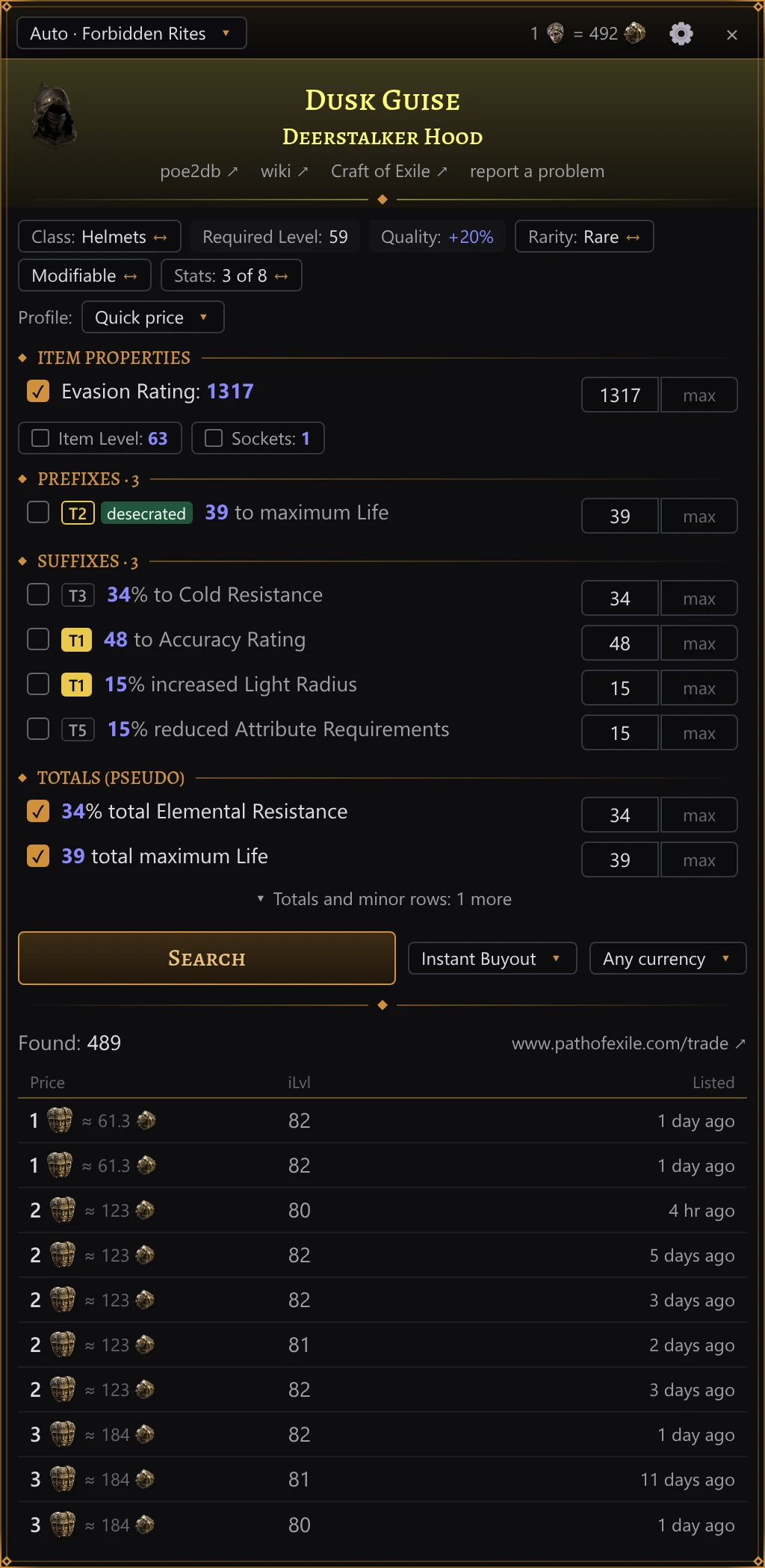
This page names the panel’s parts as the English interface shows them; the interface language switches them to Russian. The item’s own text — its name, modifiers and properties — keeps the language the game copied it in.
Checking an item
- In the game, point at an item: in your inventory, in the stash or in a vendor’s window.
- Press Ctrl+E. This is the default; you can pick another key in the settings.
PoE2 Oracle presses the game’s own item-copy shortcut, Ctrl+Alt+C, reads the item text from the clipboard and puts back whatever you had copied before. A panel then opens over the full height of the game window: next to the inventory if the cursor was on the right half of the game, next to the stash if it was on the left half. By itself it never covers the inventory or the stash, but you can drag it over them (see below).
Note
Alt in that shortcut is the game’s key for advanced item descriptions. If you bound that action to another modifier key in the game’s options, PoE2 Oracle reads your binding from the game’s settings file and presses Ctrl + that key + C instead.
- The hotkey works only while the game or the panel is the window in front and the settings window is closed. In every other program Ctrl+E keeps its usual meaning.
- Press the hotkey over another item to check that one; the panel starts over for each item, but keeps the price currency you chose (see Search options).
- With no item under the cursor, nothing happens.
- Close the panel with Esc or the × in its top-right corner. It does not close when the mouse leaves the item, so you can move into it and work with it. While the panel is open, Esc closes the panel and does not reach the game. To close it with the mouse too, turn on Close on a click outside in the settings: a click in the game outside the panel then closes it, and the click itself still reaches the game. It is off by default.
- Clicks on chips, checkboxes and buttons leave the keyboard with the game. Only the min/max boxes take the keyboard when you click into them; when the panel closes, the game gets it back.
- While the panel is open, the mouse over it (clicks and the wheel) works on the panel, not on the game.
The panel’s top bar starts with the league being searched: Auto · league while the trade site picks it, or the league you chose. Click it for the same choice of leagues the settings offer: your pick is saved there and the search runs again in the new league. Leagues are named as the trade site in the interface language names them, the English site’s names in English. Once the exchange prices have loaded, the bar also shows how many Exalted Orbs a Divine Orb is worth, drawn with the two currency icons. Drag the bar’s empty part to move the panel sideways: the next checks on that side open it there too, as far from the inventory or the stash as you left it, whatever the interface scale. Dragged back near the inventory or the stash, the panel sticks to it. A double-click on the bar puts the panel back in its usual place. The gear ⚙ opens the settings; × closes the panel.
Tip
Numbers follow the interface language:
1.72and15%in English,1,72and15 %in Russian. Large numbers are shortened withkandM:4.1kis 4,100. Every price is a number followed by the currency’s icon, such as the Divine Orb’s or the Exalted Orb’s; a currency without an icon is named instead.
The nameplate
At the top of the panel:
- the item’s picture, when the item is in the app’s item table;
- the name in the game’s rarity colour, and the base type under it for rare and unique items;
- links poe2db ↗ (the item’s page on poe2db.tw, in Russian for items from a Russian client) and wiki ↗ (the English Path of Exile 2 wiki, poe2wiki.net), for items in the app’s item table. They open in your browser;
- the link Craft of Exile ↗, for an item the site can craft (gear, jewels, flasks, charms and waystones, not uniques or unidentified items): it opens the item in Craft of Exile’s crafting simulator with its base, item level, rarity, implicits and modifiers, the site in the interface language. It works from either client: Craft of Exile’s own import reads only the English client’s text, so the link hands the item over by the game’s own ids instead, the base’s and each modifier’s with its rolls, which are the same in any language. A modifier whose id isn’t certain is left out rather than guessed;
- the link report a problem, for when the item was read or priced wrong. It opens PoE2 Oracle’s own report window, not a browser, with Item selected and the item’s text attached (and, by default, diagnostics). You describe what is wrong and click Send; no GitHub account is needed. See Reporting a problem.
The chip row
Under the nameplate, a row of chips describes the item and how it is searched.
Chips that only show information:
| Chip | Meaning |
|---|---|
| item class, without a label | Item class, as the game names it (in Russian for items from a Russian client), on an item whose search can’t switch to its base: a unique, a gem, a Currency Exchange item and the like |
| Item Level: … | Item level |
| Required Level: … | Required character level |
| Sockets: … | Sockets |
| Quality: +…% | Quality |
| Corrupted | The item is corrupted |
| Stack Size: … | Stack size |
Chips with a gold ↔ at the end switch something when clicked; their outline turns gold under the pointer. Hover any of them for an explanation.
| Chip | What it switches |
|---|---|
| Class: … ↔ Base: … | Search among every item of the class (a rare is compared with its whole class by default) or only among items of this base type. The base can matter on its own: a base implicit, a sought-after base. |
| Rarity: … | Magic, Rare or Normal searches only items of the same rarity; Any Non-Unique searches every rarity except unique. The chip starts on the item’s own rarity, so a magic item is compared with magic items and a rare with rare items; a click switches it to Any Non-Unique, and another click back. |
| Modifiable ↔ Corrupted or not | For an item that is not corrupted, corrupted listings are left out by default: they cannot be changed and may have modifiers this item lacks. Click to include them. |
| Corrupted only ↔ Corrupted or not | For a corrupted item, only corrupted listings count by default, since corruption changed them the same way. Click to include uncorrupted ones. |
| Unidentified only ↔ Identified too | For an unidentified item, only unidentified listings count by default: identified ones sell for their modifiers. Click to include identified ones. |
| Stats: N of M | How many of the listed searchable rows are selected. Click to select all of them, or none. |
A unique item has no rarity chip: its name already pins the search down. Mirrored and sanctified listings are left out of the search for ordinary gear unless your item is one; there is no chip for that.
Filters
Below the chips, the item’s properties and modifiers are listed in sections:
| Section | Contents |
|---|---|
| Item properties | Item level, sockets, quality, defences, weapon DPS, attack speed, critical hit chance, waystone tier and the like |
| Implicit modifiers | Implicit modifiers |
| Prefixes · N | Prefix modifiers |
| Suffixes · N | Suffix modifiers |
| Other modifiers, or Modifiers on an item without prefixes and suffixes | Enchantments, rune and crafted modifiers and other lines that are not prefixes or suffixes |
| Totals (pseudo) | Sums across modifiers: total life, total elemental resistance, all attributes and so on; some are labelled sum |
The rows read the way the item does: an item from a Russian client lists its properties in the game’s Russian words (DPS as «УВС») and its modifiers as the client copied them, and the totals are named by the Russian trade site.
Each row has a checkbox (whether the row takes part in the search), the modifier text with your roll highlighted in blue, a tier badge and min/max boxes; a ticked modifier whose tier the app knows also has a roll slider under it (see Min and max). The tier badge is gold-filled for T1, gold-outlined for T2 and grey for lower tiers. Small labels before the modifier text, after the tier badge if there is one, say where a modifier comes from: augment (from a rune or other augment), crafted, fractured, enchant (enchantment), desecrated. The label sum in the same place, explained when you hover it, marks a total whose value adds up the stat from all the item’s modifiers: the trade site searches listings by the same sum. Rows labelled sum appear only while PoE2 Oracle is signed in to pathofexile.com (section Account of the settings): the trade site adds stats up only for a signed-in account. Signed out, the modifiers a sum would add up are rows of their own. A line the trade site cannot search says not part of the search.
An item property left out of the search, such as item level, sockets or quality, is not a row but a small chip with an empty checkbox under its section’s rows. Click it to add it to the search: its row appears, with bounds from the item’s value. Untick the row and it folds back into a chip.
On a magic or rare item that can still take modifiers, rows Empty prefix / Empty prefixes: N and Empty suffix / Empty suffixes: N (open prefix/suffix slots) can be searched too.
Some rows are folded away: unselected totals, and minor properties such as a weapon’s physical or elemental DPS when it is only a small part of the total. ▾ Totals and minor rows: N more unfolds them; ▴ Hide totals and minor rows (N) folds them again.
Search profiles
A search profile decides which rows are selected and where their bounds start. The row above the filters starts with Profile: and a select naming the current profile. Click it for a menu of the four profiles, each with a note on what it searches:
| Profile | Note in the menu |
|---|---|
| Quick price | up to 4 most valuable stats, your rolls as minimums |
| Exact match | all stats, your rolls as minimums |
| Broad −10% | checked stats, minimums 10% lower |
| Crafting base | implicit and fractured stats on the same base |
Picking a profile, the current one included, sets the rows up and searches once. A click outside the menu or Esc closes it without searching. The select is there only for items searched by their filter rows, not for Currency Exchange items or items searched by their exact name.
An item opens with Exact match if it is a unique, a relic, a flask or a charm, or if it can no longer be modified (corrupted, mirrored, sanctified or unmodifiable) and is not a waystone. Every other item opens with Quick price, and so does a crafting base that can still be modified: an item of normal rarity, a fractured item, or one with quality above 20% or more rune sockets than its base has.
What each profile selects:
- Quick price selects rows the way PoE Overlay II does. Every modifier gets a score from its tier (against the best tier the item’s level allows), its tags weighted by the item class, how high it rolled within its range, and a few fixed bonuses. Up to 4 rows scoring 3 or more are selected, highest scores first, and no more than 2 of them may be sum rows. A local modifier (defences, weapon damage) counts toward the property it changes, and that property’s row is selected instead. Magic items follow the same rule.
- Exact match selects every row outside Item properties that is not folded away, plus the item properties Quick price would pick.
- Broad −10% keeps the rows that are ticked now and sets each min 10% below the item’s roll.
- Crafting base selects the implicit, fractured and granted-skill rows and item level, and searches among items of the same base type: the class chip switches to Base: …. The other profiles set that chip back to its default for the item.
In every profile a few stats are always selected: base implicits that define the base, such as extra projectiles or bolts, chaining, piercing, maximum elemental resistances, spirit or movement speed; unrevealed modifiers; a timeless jewel’s legend; and granted skills of level 19 or higher (of any level on an amulet).
In Quick price and Exact match, item level, sockets, quality, gem and waystone rows keep their usual checkbox. A waystone starts on Quick price, which leaves all its modifiers unselected: its tier and properties set the price, its modifiers only make the map harder. Select a modifier yourself to search for it, or pick Exact match to search them all.
Min and max
- Only min is filled in: your roll in Quick price, Exact match and Crafting base, 10% below it in Broad −10%. max stays empty, since a higher roll is never a reason to leave a listing out.
- For the few modifiers where a lower number is better, max is filled in instead.
- A waystone’s tier and numbers that name something instead of measuring it, such as a timeless jewel’s legend, are searched exactly: min and max are both that number.
- Broad −10% doesn’t lower item level, sockets, quality, a gem’s level and sockets, a granted skill’s level, a waystone’s properties or a modifier that can roll only one value: they keep the same bound as in the other profiles.
- Type digits, a point or a comma (both give a decimal point) and a minus sign. The first key after you click into a box replaces its value.
- Enter in a box runs the search again with the new bounds.
Under a ticked modifier row whose tier the app’s tier table knows, a slider runs from the lowest to the highest roll of that modifier across all its tiers on this kind of item. A bright gold tick marks your roll, and a gold circle, the handle, marks the search’s min (its max on rows where a lower number is better); the part of the track the search admits is lit gold. Click or drag on the slider to move the handle, and the min (or max) box follows; typing in the box moves the handle. Hover the slider for a short explanation that names the lowest and highest rolls.
Hover a tier badge to see where the tier stands: Tier 3 of 9 (the tier among all tiers of that modifier on this kind of item), the lowest roll of this tier, the lowest and highest rolls across all tiers (All tiers: …), the item level the tier requires, and the best tier the item’s level can roll.
The button Tier minimum, on the right of the profile’s row, shows while a ticked modifier row has a known tier. It sets the min of every such ticked row to the bottom of its current tier, so the search finds the same tier and better. Rows where a lower number is better are left alone.
Ticking or unticking rows, moving a slider, Tier minimum and switching the class, rarity, corruption or identification chips take effect with the next search: press Enter in a box or click Search.
Search options
Under the filters, the Search button runs the search again; while a search runs, it reads Searching…. Beside it (under it, on a narrow panel) are two more choices, each showing only its current value. Each click on them moves to the next value and searches again at once.
- Sellers (the tooltip starts with “Sellers:”): Buyout or In Person → Instant Buyout (the default: the game’s own auction sells the item without the seller online) → In Person (sellers online, to trade with them in the game) → Any (offline sellers too). The starting value comes from the settings, and every new item starts from it again.
- Price currency (the tooltip starts with “Price:”): Any currency → the Exalted Orb or the Divine Orb (shown by their icons) → Only the Exalted Orb → only the Divine Orb → only the Chaos Orb. This choice stays from item to item until you change it; each start of PoE2 Oracle resets it to Any currency.
Results
- Found: N is the number of listings on the trade site. The link next to it, www.pathofexile.com/trade ↗ (ru.pathofexile.com/trade ↗ for an item from a Russian client), opens the same search in your browser.
- The table shows the 10 cheapest listings, cheapest first. Several listings of one seller at the same price share a row.
- Columns: Price, iLvl (item level), Seller (can be hidden in the settings) and Listed: “just now”, “5 min ago”, “3 hr ago”, “2 days ago”, “1 mo ago”.
- A price is the amount and the currency’s icon. Markers after it: ? means the price comes from the stash tab’s name, not from a note on the item, and may not be meant; × N means the seller listed N of these at that price. A price in a currency other than the Divine or the Exalted Orb also shows roughly what it is worth in one of those two.
- An envelope ✉ before the seller’s name means the seller trades in person. A coloured dot shows their status: pink online, orange away, red offline. Listings without the envelope are instant buyout: you buy those in the seller’s hideout, which To hideout takes you to (see The trade site’s buttons).
Copying the whisper
Click a row with ✉ to copy the trade site’s whisper message for that listing. For a few seconds the row reads ✓ copied — paste it into the chat. Open the chat in the game, paste with Ctrl+V and send it yourself: copying sends nothing.
The trade site’s buttons
While you are signed in to pathofexile.com (see Account), a listing also shows the trade site’s own button for it at the end of the seller’s cell:
- To hideout on an instant-buyout listing is the site’s Travel to Hideout: the trade site takes your character in the game to the seller’s hideout, where you buy the item. The seller needn’t be online.
- Whisper on a listing whose seller is online or away is the site’s Direct Whisper: the trade site sends the seller the listing’s whisper from your character.
The site does it through your game session; PoE2 Oracle presses nothing in the game. Each press is one request to the site, and a press is never repeated on its own. The row then says how it went, in place of the seller and the listing’s age:
- ✓ Teleporting to the seller’s hideout or ✓ Whisper sent: the site did it.
- In demand, with the button Anyway: the site says the item is already in demand. Anyway travels to the seller’s hideout all the same, as the site’s own “Teleport anyway?”.
- ✗ The listing is gone — search again or ✗ The seller is gone — search again: the site won’t do it for this listing any more. Hover the note for the site’s own words, when it gave any.
- ✗ Expired — search again: the site takes a listing’s buttons for a few minutes after the search. The app doesn’t send them after that.
- ✗ Sign in again: settings, “Account”: the site no longer accepts the app’s sign-in.
- Request limit — in N s: the site’s request limit for these buttons. The button stays: press it again once the time is up.
- ✗ No answer from the site: no connection, or the site failed. The button stays.
Signed out, the buttons don’t show; nor on listings a search found before you signed in.
Listing details
Hover a row to see the listing the way the game’s own item tooltip shows it: the name in its
rarity colour, properties, requirements, sockets with their runes, item level, every modifier,
flags such as Corrupted and the seller’s note. Each modifier has its tier on the left and
lvl N (the item level it needs) on the right; as in the game’s advanced (Alt)
tooltip, the prefixes (P1, P2…) come first, then the suffixes (S1…). The range a value
rolls in follows it in brackets, for example +38(36-40)%. The listing’s own text is in the trade
site’s language: in Russian for an item from a Russian client.
The modifiers you search for are marked:
- green ✓ — the modifier meets your bounds;
- red ✗ with (needs …) — it is outside them, and the bounds are shown;
- Missing from this item: at the foot of the card — selected rows the listing does not have at all.
When nothing matches exactly
When a search finds nothing, the panel says Nothing found and offers two broader searches. Each costs one search on the trade site, and only when you press it:
- Broad −10%: the same ticked rows, each min 10% below the item’s roll. Not offered when that is already the profile.
- Match N of M: listings that have at least N of the M ticked rows, that is, all of them but one. Item properties such as defences, and sum rows, are not counted and always stay required. Offered only when at least two ticked rows count.
After Match N of M, the results say “No exact matches — showing items with at least N of M
selected stats”, and each row shows how many of the selected rows it has, for example 3/4, when
every ticked row that counts is a modifier, not a total or an empty slot. If that search finds
nothing either, the panel says “Nothing found — not even with N of M selected stats”.
You can also widen the search yourself: untick some rows, lower some min values, search by class instead of base, or let other sellers in with the sellers choice beside Search.
Currency and exchange items
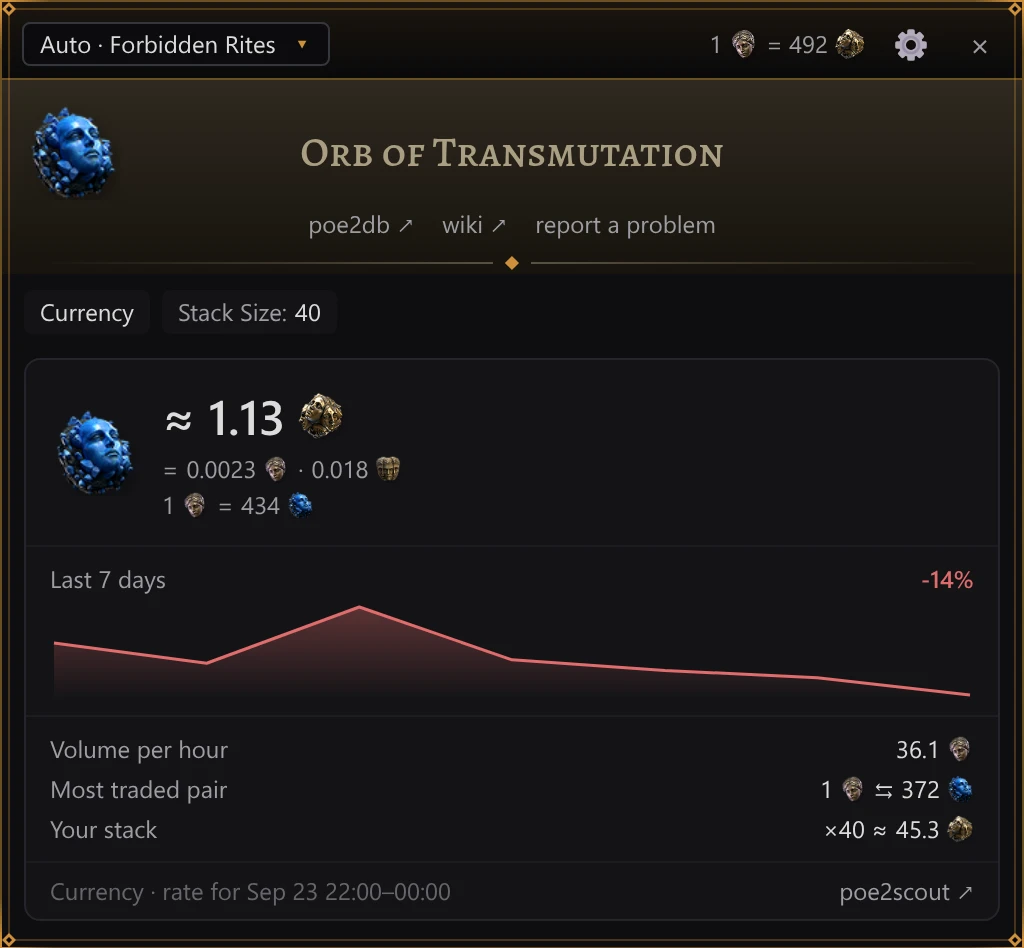
Items traded on the in-game Currency Exchange (currency, omens, runes, essences, catalysts, soul cores, fragments, uncut and lineage gems, plain waystones and the like) are priced from GGG’s own record of the trades made on the exchange instead of trade listings. GGG publishes it hour by hour, a few minutes after each hour ends: the price is the average rate of the last complete hour’s trades, or of up to three hours for an item traded rarely. The hours downloaded are kept, so without an internet connection the card shows the last ones saved. The market card shows:
- ≈ price with the icon of a Divine Orb or an Exalted Orb, and under it the same value in the other core currencies, each with its icon;
- for cheap items, how many of them one Divine Orb buys;
- Last 7 days: the price change in percent over the last seven days on poe2scout, with a chart of daily prices; days without a price are gaps. “not enough data” means what it says;
- Volume per hour, in Divine Orbs;
- Most traded pair: the rate of the pair this item is traded in most;
- Your stack: “×N ≈ …”, what the whole stack you checked is worth;
- the item’s group on the exchange and “rate for 09:00–10:00”: the hours the price comes from, on your computer’s clock, with the date when they are not today’s; and a poe2scout ↗ link to the item’s page on poe2scout.
When the exchange has no recent trades
Not every exchange item changes hands every hour: in a small league such as Standard many don’t. For an item without trades in the last hours:
- if poe2scout has a price, the panel says “Nobody traded this item on the Currency Exchange in league in the last hours.”, shows poe2scout price: and offers the button Trade site listings. The trade site is searched only when you click it, since every search counts against its request limit;
- without a poe2scout price, the trade site’s listings are searched right away, under the same note.
If GGG’s exchange data cannot be reached and none is saved, the panel says “GGG’s Currency Exchange data is unavailable right now.” and prices the item from poe2scout the same way; if poe2scout cannot be reached either, it shows the trade site’s listings. “No listings on the trade site” means the trade site has no listings of the item.
In a private league
A private league trades too little on the Currency Exchange to price anything by: even a busy one makes a few dozen trades in half a day, and poe2scout does not list private leagues. So the market card, the Divine Orb rate in the title bar and the poe2scout price of uniques come from the public league yours is made from, the one its page on pathofexile.com names. Until the app has read that page (signed out, say), it takes the current league, or its hardcore twin for a league with “HC” or “Hardcore” in its name (Forbidden Rites and HC Forbidden Rites this season). The card says so in a line under the price, “Prices from league: a private league trades too little on the exchange.”, and so does the rate’s tooltip. Take them as a guide: a small league’s own rates can be far from the public league’s. Trade site searches, listings included, stay in your league.
Unique items
An identified unique is searched by its name. Above the results, poe2scout price: shows its price on poe2scout, with the currency’s icon; in a private league, the public league’s price, which the line names (In a private league).
An unidentified unique is compared with unidentified uniques of the same base. It has no poe2scout line, since its name is not known yet.
Waystones
A waystone’s modifiers start unselected: its tier and properties decide the price. You can mark modifiers to spot them at a glance on every waystone you check:
- click the ◇ at the end of a modifier row. Each click moves the mark on: danger (red) → caution (orange) → wanted (green) → no mark. A marked row shows ◆ in the mark’s colour; to clear the mark, click it until it is ◇ again;
- marked modifiers are listed under the filters: Danger:, Caution:, Wanted:;
- while none of this waystone’s modifiers is marked, the panel reminds you: “◇ at the end of a modifier marks it: danger, caution or wanted”.
Marks are saved in PoE2 Oracle’s settings file, not shown in the settings window, and apply to the same modifier on every waystone, in both client languages. Marking a modifier does not add it to the search.
Vendor gambles
A vendor’s gamble offer (“Random Helmet” and the like) is not searched. The panel says “This is a vendor’s gamble: which item it is shows only once you buy it. Items like this aren’t sold on the trade site.”
Messages
| Message | Meaning |
|---|---|
| “Loading trade site data…” | Loading the trade site’s data. Happens on the very first start and takes a few seconds. |
| “No data from the trade site — no internet connection, or the site is down. Retrying automatically.” | The trade site’s data could not be downloaded: no internet, or the site is down. The app retries by itself. |
| “Hover over an item and press Ctrl+E” | Point at an item and press the hotkey. |
| “Searching…” | Searching. |
| “Loading exchange prices…” | Loading the Currency Exchange’s prices for an exchange item. |
| “Trade API request limit — waiting Ns…” | The trade site’s request limit is close; the app waits N seconds and then searches. |
| “The trade site has limited searches for a while — try again in 9m 50s.” | Searches are on hold: the trade site has locked searches from your IP address for a while, or its limit would need a wait longer than 15 seconds. Search again after that time; Currency Exchange prices keep working. See Request limits. |
| “Can’t reach the trade site — check your internet connection and try again.” | The trade site could not be reached. Check your connection and search again. |
| “The trade API refused the request (HTTP …): …” | The trade site refused the search; its own message follows. |
| “The trade site searches the “sum” rows only for a signed-in account, and it isn’t accepting this app’s sign-in now…” | The search had a ticked sum row, and the trade site did not accept PoE2 Oracle’s sign-in. Search without sums builds the rows again without sums, as a signed-out search does, and searches once; Sign in opens the pathofexile.com sign-in page. |
| “The trade site finds this search too complex: uncheck some rows and search again. Signed in, the site allows more.” | The search has more rows than the trade site takes. Untick some rows and search again, or sign in to pathofexile.com in the settings. |
| “Search failed: …” | Any other search error. |
| “Nothing found” | No listings match. Buttons under it offer broader searches, one trade search each: Broad −10% and Match N of M. “Nothing found — not even with N of M selected stats” means that Match N of M found nothing either. See When nothing matches exactly. |
| “Nobody traded this item on the Currency Exchange in … in the last hours.” | This exchange item has not been traded in your league in the last hours; poe2scout’s price or the trade site’s listings are shown instead. See When the exchange has no recent trades. |
| “GGG’s Currency Exchange data is unavailable right now.” | GGG’s exchange data could not be reached; poe2scout’s price or the trade site’s listings are shown instead. |
| “No listings on the trade site” | The trade site has no listings of this exchange item. |
| “The game runs as administrator, and Windows doesn’t let PoE2 Oracle press keys in it…” | The game runs as administrator and PoE2 Oracle doesn’t, so nothing was copied. Start the game normally, or run PoE2 Oracle as administrator too. See Troubleshooting. |
| “The game doesn’t copy the item: another program takes Ctrl+Alt+C…” | Another program holds the copy shortcut, so the game never copied the item. See Troubleshooting. |
| “Couldn’t read the item…” | The item text could not be read. The button Report a problem under the message opens PoE2 Oracle’s report window with Item selected and the item’s text attached: describe what went wrong and click Send. See Reporting a problem and Troubleshooting. |
Request limits
The trade site limits how many requests one IP address may make in a given time, and it counts every request from it: PoE2 Oracle’s, the trade site open in your browser and any other trade tool on the same connection. A price check costs one search and one request for the 10 cheapest listings. PoE2 Oracle reads the limits from the site’s answers:
- when the next search would break a limit and the wait is 15 seconds or less, the app waits, saying “Trade API request limit — waiting Ns…”, and then searches by itself. It does not sit out a longer wait: the search stops with “The trade site has limited searches for a while — try again in …” and the time left;
- when the trade site refuses a request, it locks your IP address out for a while, often for minutes. PoE2 Oracle then sends no trade request at all until the lockout ends and says when to try again: “The trade site has limited searches for a while — try again in 9m 50s.” Currency Exchange prices keep working meanwhile.
Repeating an identical search within two minutes does not send a new request.